
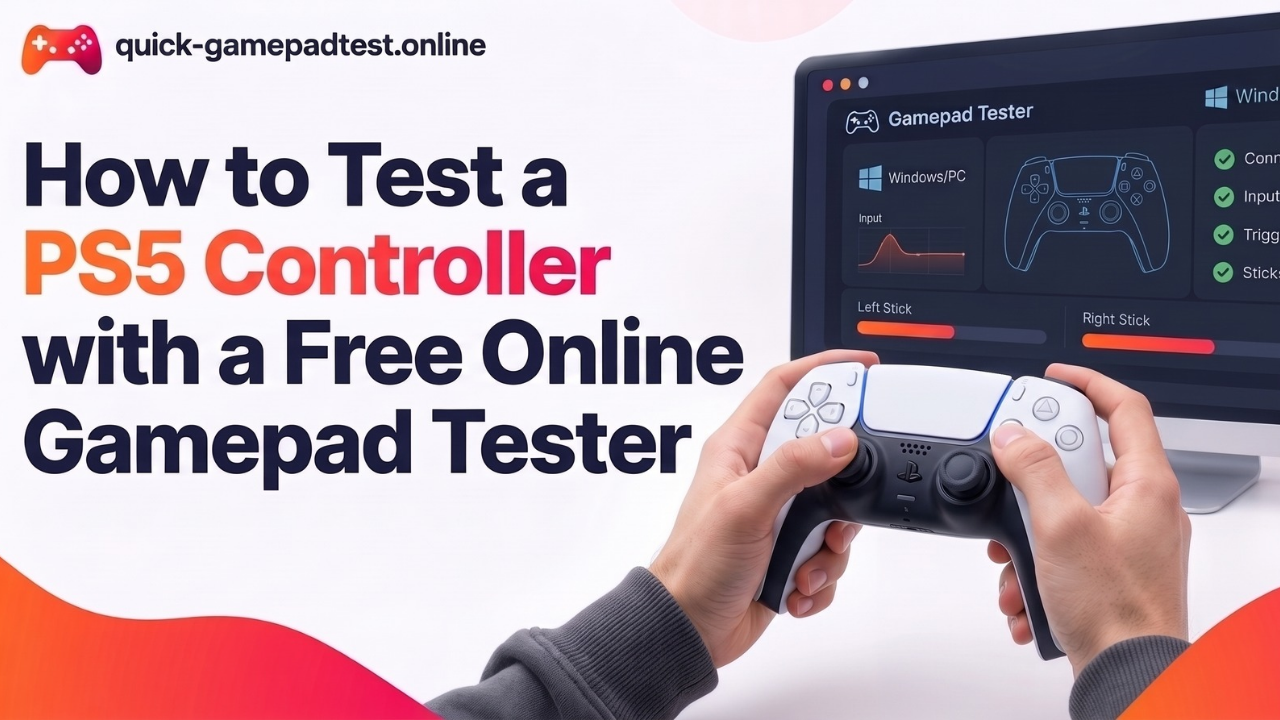
To test a PS5 controller, simply connect it to a computer with a USB-C cable or over Bluetooth and press any button. Then open a free online gamepad tester, and the page shows every button, stick, and trigger instantly in your browser. Press each input once, release both sticks to check for drift, and run the vibration test if your browser supports it. The whole check takes about two minutes and needs no download or install.
Free Browser Gamepad Tester for Your PS5 Controller
A PS5 controller does not need a console to prove it works. Any computer with a modern browser can read a DualSense and show its signals on screen. A free online gamepad tester is the fastest way to check the pad and diagnose most controller issues in a few minutes.
What a Controller Tester Checks on a DualSense Wireless Controller
A controller tester reads the signals a DualSense wireless controller sends and draws them on a live layout.
- Buttons light up when pressed.
- Sticks move a dot across a grid.
- Triggers fill a bar from 0.00 to 1.00.
Browsers get this data through the Gamepad API, which lists every button and axis a device reports. According to MDN Web Docs, the Gamepad interface has worked across browsers since March 2017. A browser test cannot read motion sensor data, battery level, firmware version, or adaptive trigger settings. If you also want to test PS5 controller speaker, mic and battery, the separate guide covers those steps. The page on what the PS5 tester checks lists every supported test, and the PS5 controller test runs them live.
Why Testing in the Browser Is the Easiest Way to Check
- Nothing to install and no account to create.
- No console needed, so you can rule out the PlayStation itself.
- Clear proof of whether a fault comes from the controller or from a game.
- A full check takes about two minutes.
Who Should Test a PS5 Controller
Gaming Players Who Notice Drift or a Dead Button
Some players see a character walk alone or a menu that scrolls by itself. Others find a button that needs a hard press or ignores presses entirely. A tester shows the cause within seconds. It separates a worn controller from a game bug or a settings problem.
Buyers of a Used DualSense or PS4 Controller
Second-hand pads look fine from the outside. A short test right after purchase catches weak sticks, sticky buttons, and dead triggers while a return is still possible. The same check works for a PS4 DualShock.
What You Can Test on a PS5 Controller
Press Buttons and Watch Every Input Register
Use these button tests to check buttons one at a time. Press each input once and watch the on-screen layout.
- Face buttons: Cross, Circle, Square, and Triangle
- D-pad: all four directions
- Bumpers: L1 and R1
- Stick clicks: L3 and R3
- System buttons: PS, Create, Options, and the touchpad click
Each press should light the matching shape once and release cleanly. A button that flickers, stays lit, or fails to respond points to dirt under the cap or a worn contact.
Control Sticks and Stick Drift
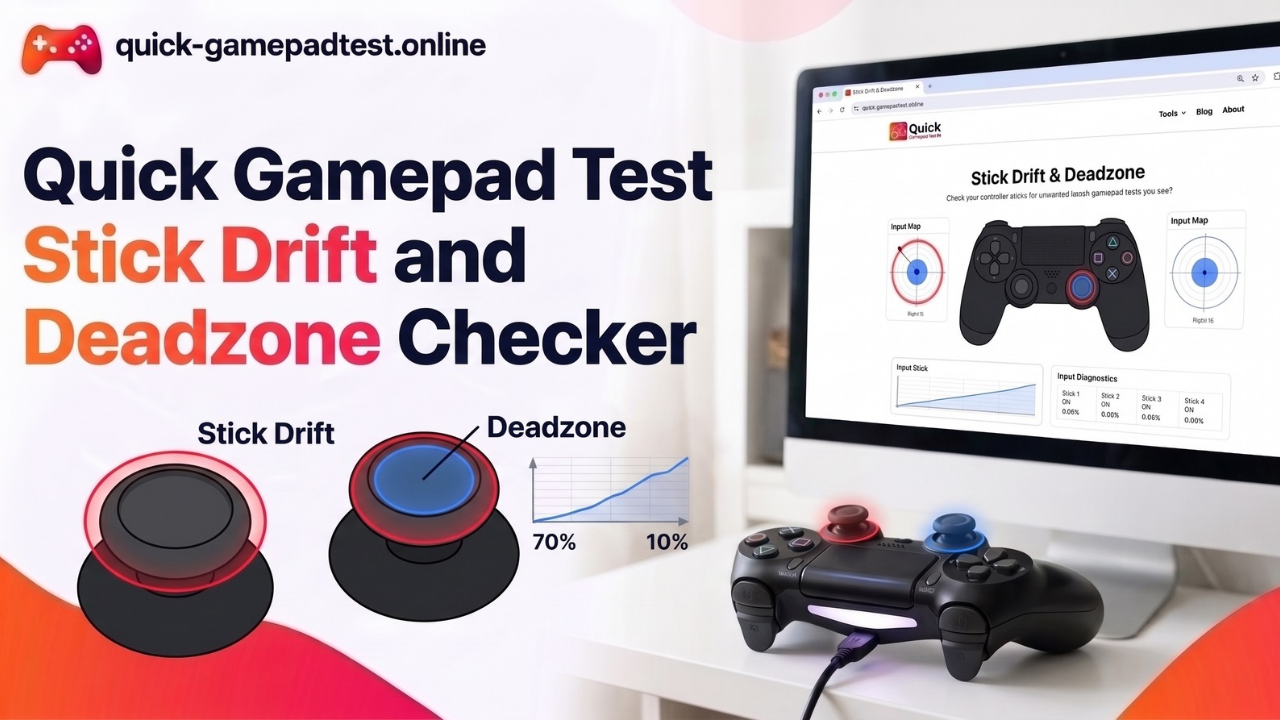
Analog stick wear causes most controller complaints. Stick drift, also called joystick drift, means the controller reports movement while the thumb stays off the stick. It starts inside the potentiometer, the part that measures stick position. According to Video Games Chronicle, iFixit found that the DualSense uses Alps joystick parts rated for 2,000,000 cycles. The repair site estimated that heavy play could use up that life in about 417 hours, although the real number changes from game to game. iFixit writer Kevin Purdy described the parts as “off-the-shelf joystick hardware with a long history of predictable, preventable issues”.
To check a PS5 controller for stick drift, follow these steps:
- Release both sticks and leave them alone for three seconds.
- Run the rest drift check and read the numbers. Each stick reports two axes, one for left and right and one for up and down. Both should sit near 0.00.
- Treat a steady reading above 0.10 as a sign of drift.
- Run the circle test. Roll each stick slowly around the edge. The path should look round and smooth.
Games also apply dead zones, a small area near the center that they ignore. Light drift can hide in one game and show up in another.
Triggers and Vibration
Squeeze the L2 and R2 analog triggers slowly. Each reading should rise smoothly from 0.00 to about 1.00 without jumps or a stuck point. Compare both triggers. A big gap between full-press values suggests wear.
To test PS5 controller vibration, run the dual-rumble test and feel both sides of the controller. If your browser supports it, run the trigger rumble test next. Vibration support differs by browser, operating system, and controller, so a missing rumble does not prove the controller is broken. Try USB or another browser before you decide.
Connect Your Gamepad and Test PS5 Step by Step
The steps below suit most setups. For extra detail on Windows and Mac, see the guide on how to test a PS5 controller on PC.
Connect Your Gamepad With a USB Cable
- Plug a data-capable USB-C cable into the controller and into a port on the computer. Some charge-only cables carry no data and will not work.
- Wait a few seconds while the system recognizes the device.
- Press any button. Browsers usually list a controller only after its first input.
- Open the tester. The layout should now show a DualSense.
If more than one controller is plugged in, remove the extras so the page reads the one controller you want to check.
Connect Over Bluetooth
Hold the Create button and the PS button together until the light bar flashes. Open the Bluetooth settings on the computer and pick Wireless Controller from the list. Then press a button and open the tester. Bluetooth can add a little lag, so USB gives the cleanest result when you troubleshoot.
Pick a Supported Browser
Chrome, Edge, Firefox, and Safari all support basic gamepad detection. Vibration is the feature that varies most, so switch browsers if rumble does not run. If the page detects nothing, close any game or app that may hold exclusive control of the controller, then reconnect and press a button again.
A Short Guide to Reading Your Test Results
| Reading | What it means | What to do |
| Stick near 0.00 at rest | The stick is centered | Nothing to fix |
| Stick above 0.10 at rest | Possible drift | Repeat the check, then clean or reset |
| Trigger rises evenly from 0.00 to 1.00 | The analog trigger works | Nothing to fix |
| Button stays lit | The input is stuck | Reconnect, test again, then clean |
| Button not detected | The page gets no input | Try another cable, port, or browser |
| No rumble | Support may be limited | Try USB and another browser |
When every reading looks right the controller is working properly. A tester shows the fault but does not recalibrate the stick.
Fix, Reset, and Repair a PS5 Controller That Fails the Test
Reset the DualSense Wireless Controller
A reset is the safest first fix. Sony’s support page lists the steps.
- Turn off the PS5 and unplug the controller.
- Find the small reset hole next to the Sony logo on the back.
- Press and hold the button inside with a pin for at least five seconds.
- Connect the controller to the console with the official USB cable and press the PS button.
Sony also advises players to install the latest PS5 system software. For drift, iFixit reported some success with compressed air and isopropyl alcohol around the stick module, although that fix can be temporary.
When to Contact Support or Book a Repair
If a reset does not help, check the warranty first and then contact PlayStation support. A standard DualSense needs soldering to replace a worn stick module, according to Tom’s Guide, so most players choose a replacement or a professional repair. The DualSense Edge is easier because its stick modules swap out without opening the case, as Notebookcheck reported from the iFixit teardown.
Test a PS4, PS3, or Xbox Controller Too
The same steps work on other pads when the browser exposes them as gamepads. That includes generic USB gamepads. DualSense and DualShock controllers connect the same way. An Xbox controller from the Xbox One or Xbox Series family works over USB or Bluetooth, and on Windows it uses XInput. A Nintendo Switch Pro controller can also work. A PS3 pad may need an adapter or extra drivers, so check the compatibility details for your computer first because detection is not guaranteed. These tests matter because iFixit noted that the same stick parts appear in the DualShock 4, Xbox One controllers, and the Switch Pro controller.
Related Controller Tester Pages
- Stick Drift Test: check whether a stick keeps moving at rest
- Controller Vibration Test: test supported rumble output
- Controller Input Test: view every button, axis, and trigger
- Joystick Test: check range on joysticks and throttle axes
- PS4 Controller Test: inspect a DualShock 4
- Xbox Controller Test: test Xbox Series X|S and Xbox One pads
FAQs
How do I test a PS5 controller online for free?
Connect the DualSense to a computer with a data-capable USB-C cable or over Bluetooth, press any button, and open a free online gamepad tester in a modern browser. The page shows each button, stick, and trigger as you use it. Press every input once, release both sticks for three seconds, and run the vibration test if your browser supports it. The check needs no download.
Do I need a PS5 console to test a DualSense controller?
No. Any computer with a modern browser can read a DualSense through the Gamepad API. Sony’s support page lists Windows PCs as supported over a wired connection, so USB is the safest way to start. Bluetooth also works on supported systems but can add a little lag.
What should a healthy PS5 controller test show?
Every button should light once and release cleanly. Both sticks should rest near 0.00 on each axis, and the L2 and R2 triggers should rise smoothly from 0.00 to about 1.00. A steady stick reading above 0.10 at rest points to drift. These numbers give you a clear pass or fail for each input.
How do I know if my PS5 controller has stick drift?
Release both sticks for three seconds and read the axis values. A steady reading above 0.10 signals drift. Then run the circle test to look for jumps along the edge. Wear inside the stick is a common hardware cause. iFixit found that the DualSense uses Alps stick parts rated for 2,000,000 cycles, and Video Games Chronicle reported an estimate of about 417 hours of heavy play.
Why is my PS5 controller not detected in the browser?
Most detection problems come from the cable or the connection. Use a USB-C cable that carries data and try another port. Press a button after you connect, because browsers list a controller only after its first input. Close any app that may hold exclusive control of the controller, then reconnect or try another browser.
Can a browser test check adaptive triggers, gyroscope, or battery level?
No. A browser test reads buttons, sticks, trigger travel, and vibration where supported. Motion sensor data, battery level, firmware version, and adaptive trigger settings sit outside a standard browser test. Use your console or the controller’s own software for those checks.
How do I reset a PS5 controller that fails the test?
Turn off the PS5 and unplug the controller. Press and hold the small reset button inside the hole next to the Sony logo for at least five seconds with a pin. Then connect the controller with a USB cable and press the PS button. Sony’s troubleshooting page lists these steps.
Does the same test work for PS4, PS3, and Xbox controllers?
Yes for a PS4 DualShock and for Xbox controllers when the browser exposes them as gamepads. A Nintendo Switch Pro controller can also work. A PS3 pad may need an adapter or extra drivers, so detection is not guaranteed.