
A gamepad tester not working is annoying, mostly because the pad itself usually isn’t the problem. When a controller goes quiet on a test page, the fault almost always lives in one of five spots: the cable, the connection, Windows, Steam or the game. That’s good news, since every spot has a fast check and none of them needs special tools.
This guide takes them one at a time in the order that saves the most effort. Along the way it covers Bluetooth pairing, driver leftovers, Steam settings and the stick drift that fools plenty of players. By the end, a reader should know whether the controller works, which layer is eating the signal, and what to try next. Grab the pad and a spare cable. Most fixes here take a couple of minutes.
What a Gamepad Tester Checks on Your PC
How a Gamepad Tester Reads Controller Input
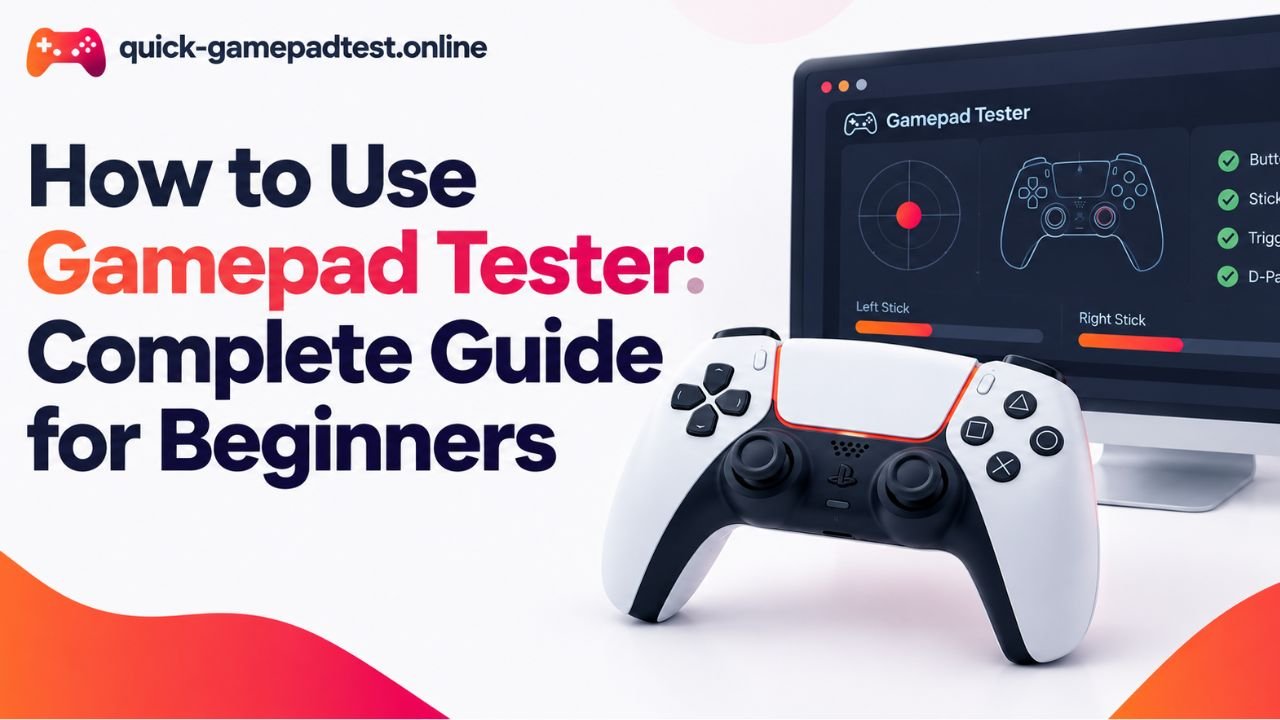
A browser-based gamepad tester simply listens to what the controller tells the operating system. Press a button and a value flips on screen. Push a stick and its axes move. Squeeze a trigger and a bar fills up. Nothing gets installed and nothing gets saved, so a player can verify every button, both sticks and both triggers in under a minute.
Why the Gamepad Tester Shows Nothing Even When the Controller Works
Here’s the catch. Browsers keep a pad hidden from a web page until the player actually touches it. The MDN Gamepad API guide says a page only sees the controller after a button press or stick movement. Other software can also get there first, and Steam or a remapper often does. That’s why Gamepad Tester Not Working / Controller Not Detected can look like a dead pad when the hardware is fine.
Run a Quick Diagnostic Before You Change Anything
Use a Diagnostic Tool Outside the Browser
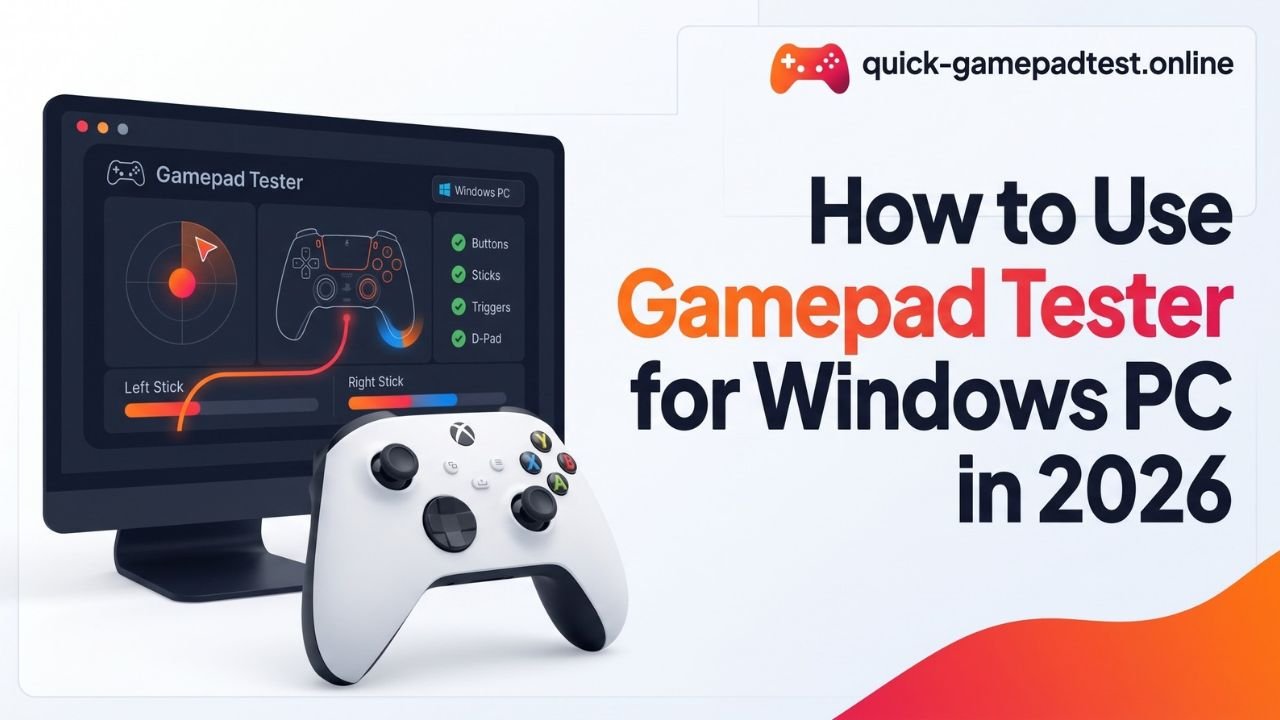
Windows has its own diagnostic tool, and it has been there for years. Press the Windows key and R together, type joy.cpl and hit Enter. Pick the controller, click Properties and watch the live readout. If the buttons light up there, Windows sees the pad and the trouble sits further along. Anyone who likes screenshots for each click can follow this step-by-step Windows PC guide.
Find the First Layer Where the Controller Fails
Start at the bottom and climb. Cable first. Connection type next. Then Windows, then Steam, then the game. Wherever the signal first disappears, that’s the layer to fix. Changing three things at once just muddies the picture, so make one change and test again.
Controller Connected but Not Working on PC
Charge Only Cables and Bad USB Ports
Plenty of cables carry power and nothing else. The pad lights up, the player feels hopeful, and the PC sees nothing. Swap in a cable that’s known to move data and try a different USB port too. Rear ports on a desktop tend to behave better than front panel ports or cheap hubs. Anyone who wants to test a joystick on PC should plug into the back first.
Reset Wireless Pairing and Bluetooth Controller Connections
Wireless pads fall out of sync more often than people think. Remove the controller from Windows Bluetooth settings and pair it fresh. A PS4 pad pairs when the player holds Share and the PS button, and a PS5 DualSense does the same with Create and PS. An 8BitDo pad has its own pairing combo, so its manual is worth a look. A receiver or adapter works best in a direct port without a hub in between.
Clean Up Gamepad Drivers in Device Manager
Old driver entries pile up quietly. Open Device Manager, click View and turn on hidden devices. Faded entries linked to the pad can go. Unplug the controller, restart the PC, then plug it back in. Microsoft builds native support for Xbox controllers into Windows, so a clean entry usually needs no extra download.
Gamepad Controller Not Detected in Your Browser
Browser Limits and the Press Any Button Rule
Chrome, Edge and Firefox share the same rule: nothing shows until a button gets pressed. A player who hits a gamepad tester not detecting controller message should tap a face button and keep the tab in front. Background tabs get no input at all. A quick refresh after that first press often wakes the pad up.
Test the Same Gamepad Controller in a Second Browser
Try another browser. If the pad shows up in Google Chrome but not in Firefox, the controller is fine and the first browser is the culprit. A simple gamepad tester check controller routine works well here: press every face button, move both sticks, pull both triggers. Older systems sometimes lag behind too, so a look at browser and Windows compatibility can save a lot of guessing.
Steam Input Problems That Block Gamepad Input
Turn Steam Input On or Off for Each Controller
Steam Input sits between the controller and the game and rewrites the signal. That’s great for remapping and sometimes terrible for a pad that worked yesterday. In Steam settings the Controller section has separate switches for each pad type. Turning Steam Input off for an Xbox or generic pad often brings normal behavior back. Turning it on helps PlayStation and Nintendo pads in games with weak controller support. Steam Deck owners can check the same panel.
Remapper Apps That Create a Second Controller
DS4Windows and reWASD both create a virtual pad. Run one beside Steam Input and the game may see two controllers at once. Presses double up or disappear. Keep a single remapping layer running and close the rest before testing.
XInput and DirectInput Mode Mismatch
Most modern PC games expect XInput. Older games and cheap generic pads often speak DirectInput instead. When the two don’t match, the game simply ignores the pad. Many controllers hide a mode switch on the back or a button combo for this. Flip it to XInput first and test again.
Stick Drift and How a Gamepad Tester Shows It
Confirm Drift on the Stick Test
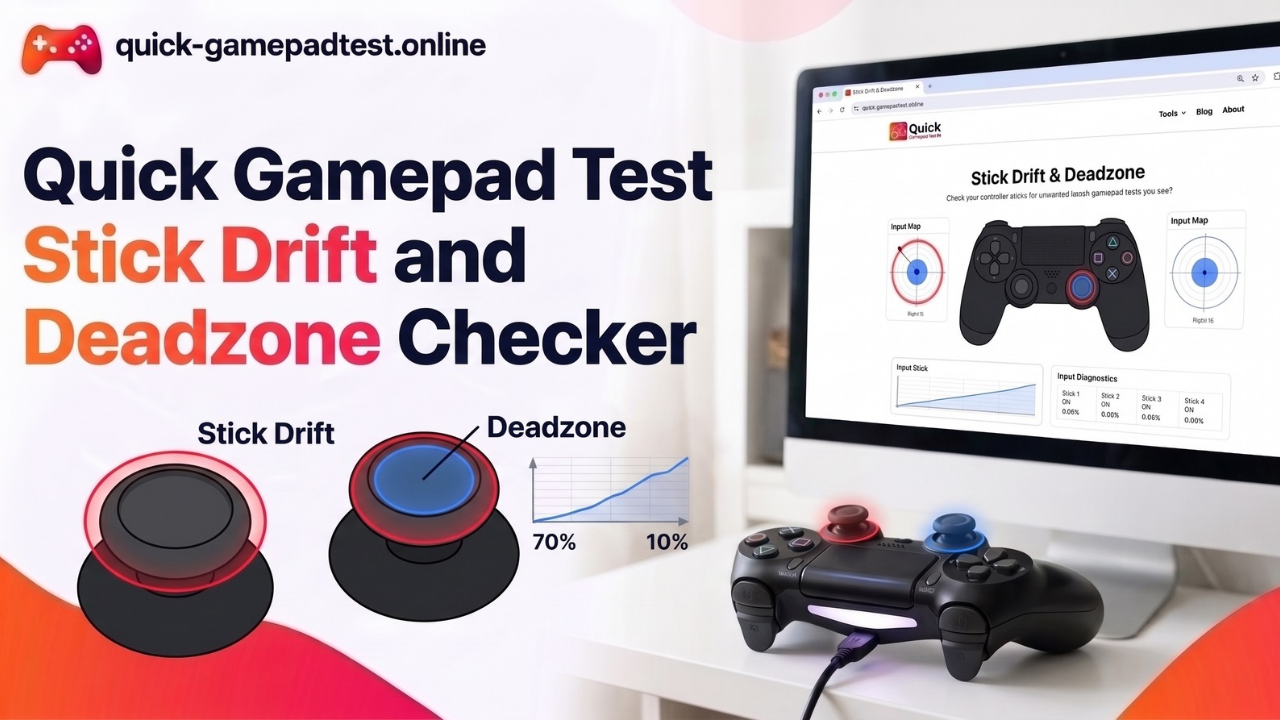
Open a controller input test and let go of both sticks. The dot should sit dead center. If it wanders on its own, that’s stick drift. It’s more common than most players think. A YouGov survey of 919 UK adults for the consumer group Which? found that 40% of surveyed Switch owners reported Joy-Con drift. Which? policy director Rocio Concha said that “drift problems continue to plague Nintendo Switch owners.”
Controller Settings That Reduce Drift
Calibration comes first because it resets the center point. After that, raise the deadzone a little at a time until the dot settles. Keep in mind that a deadzone only hides mild drift. It can’t fix a worn part, and a big one makes slow aiming feel mushy during gameplay.
When Drift Points to Hardware Wear
If the dot still wanders after calibration and a reset, the stick sensor has likely worn out. Dust and plain daily use do most of the damage. A pad that needs a huge deadzone just to stay quiet has a hardware problem, not a software one.
Controller Settings to Check in Windows and in Games
Calibration and Deadzone in One Place Only
Choose one spot for calibration and deadzone. The game, Steam or the maker’s app can all handle it, but only one should. Stacked deadzones make movement feel sluggish and turn drift into a puzzle nobody can trace.
Reset Per Game Controller Settings
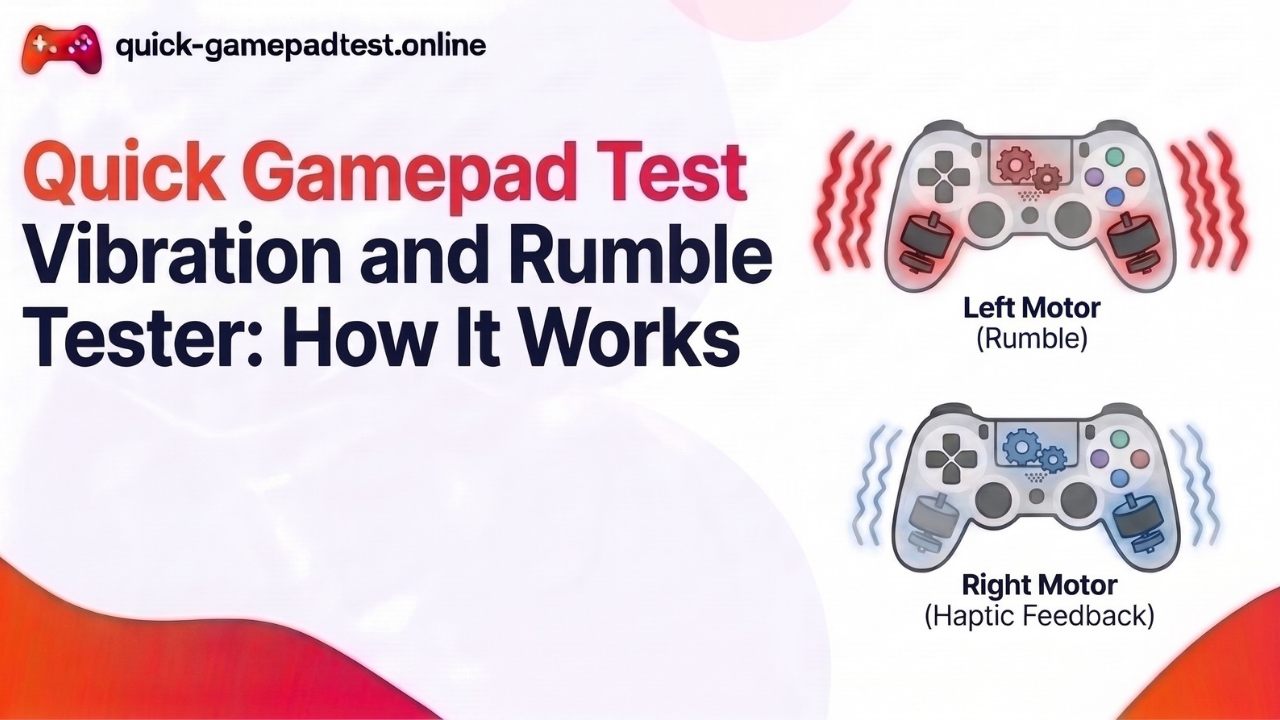
Games love saving their own profiles. Reset it to default for a single test pass. Then look at trigger sensitivity, vibration and rumble, gyro and haptic feedback. Check that latency feels normal within the game too. If the pad passes the tester but fails there, a stale profile is the usual reason.
When to Repair or Replace the Gamepad Controller
Warranty Checks Before You Open the Controller
Opening a pad can void the warranty, so read the terms first. Hold on to the receipt and film a short clip of the failed test. Support teams move faster when they can see the fault with their own eyes.
Signs the Diagnostic Tool Result Is Final
If the pad fails on a second cable and a second PC, the verdict is in. Players often ask whether you need a gamepad tester download. For most pads the answer is no, since a web tool and joy.cpl cover the job. When both agree the hardware is bad, repair or replacement is the next move.
FAQs
Why does a gamepad tester show no controller at all?
A tester shows nothing until the pad sends input. Browsers hide gamepads from web pages for privacy, so the player has to press a button or move a stick after the page loads. The tab also needs to stay in focus. Pages inside in-app browsers often can’t read gamepads at all, which makes detection fail there. The MDN Gamepad API guide explains the rule in detail.
Why does a controller work in the tester but fail inside a game?
The tester only confirms basic input. The game may expect XInput, Steam Input may be rewriting the signal, or a remapper may be adding a second virtual pad. A quick controller testing pass also skips rumble, gyro and saved game profiles. Closing extra remapping apps and switching the pad to XInput mode fixes most of these cases.
Can a charge only USB cable stop a PC from seeing a controller?
Yes. A charge only cable carries power but no data, so the controller lights up while the PC sees nothing. Swapping in a cable that moves data usually solves the problem straight away. Plugging that cable into a rear USB port adds a little extra safety against weak front panel connections.
How can a player confirm stick drift on a gamepad tester?
Let go of both sticks and watch the axis values or the dot on screen. They should rest at zero. If the numbers keep moving, the stick is drifting. Repeat the check in the Windows joy.cpl window to rule out the browser. Drift that survives calibration points to worn hardware rather than a software setting.
Is USB or Bluetooth better for testing a controller on PC?
USB is the safer first choice. It removes pairing problems from the picture, and vibration support over Bluetooth varies between controllers and browsers. Once the pad passes over a cable, a second test over Bluetooth shows whether pairing was the real culprit.
Is it safe to use an online gamepad tester?
Most reputable testers read the controller locally in the browser and need no install. They don’t send button presses anywhere. A player should still read the site’s privacy note and skip any page that asks for downloads or odd permissions.