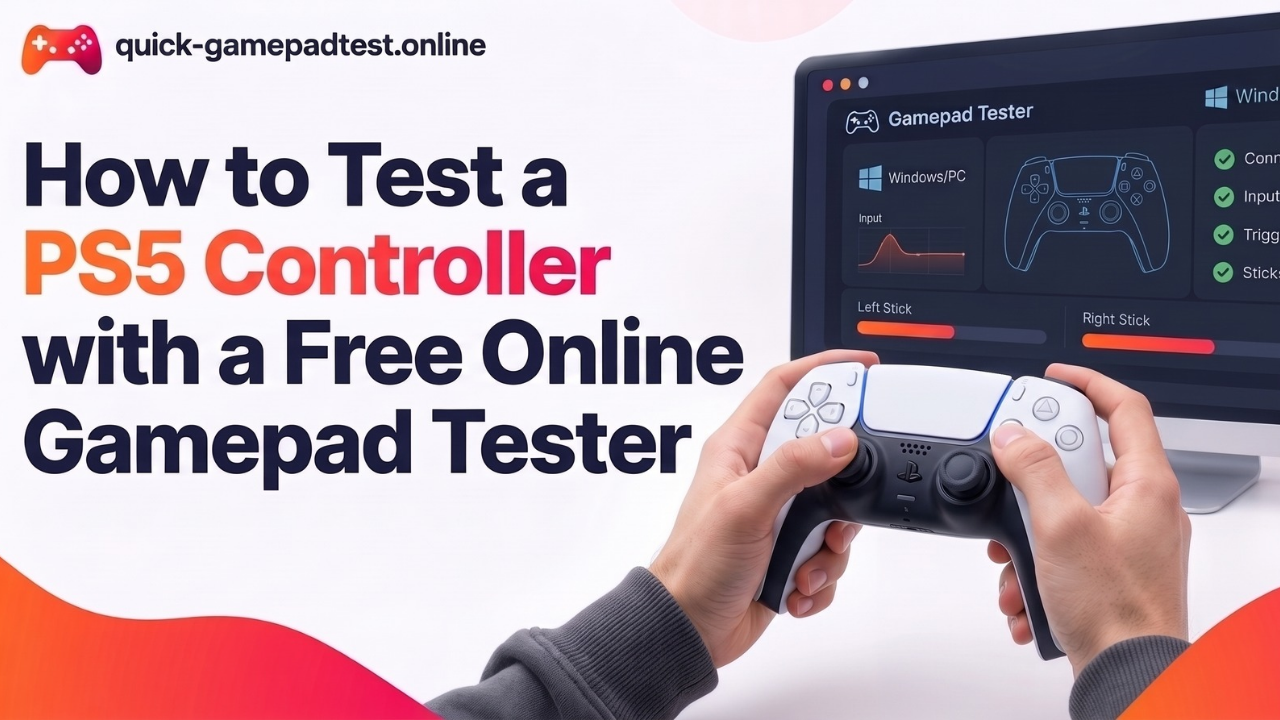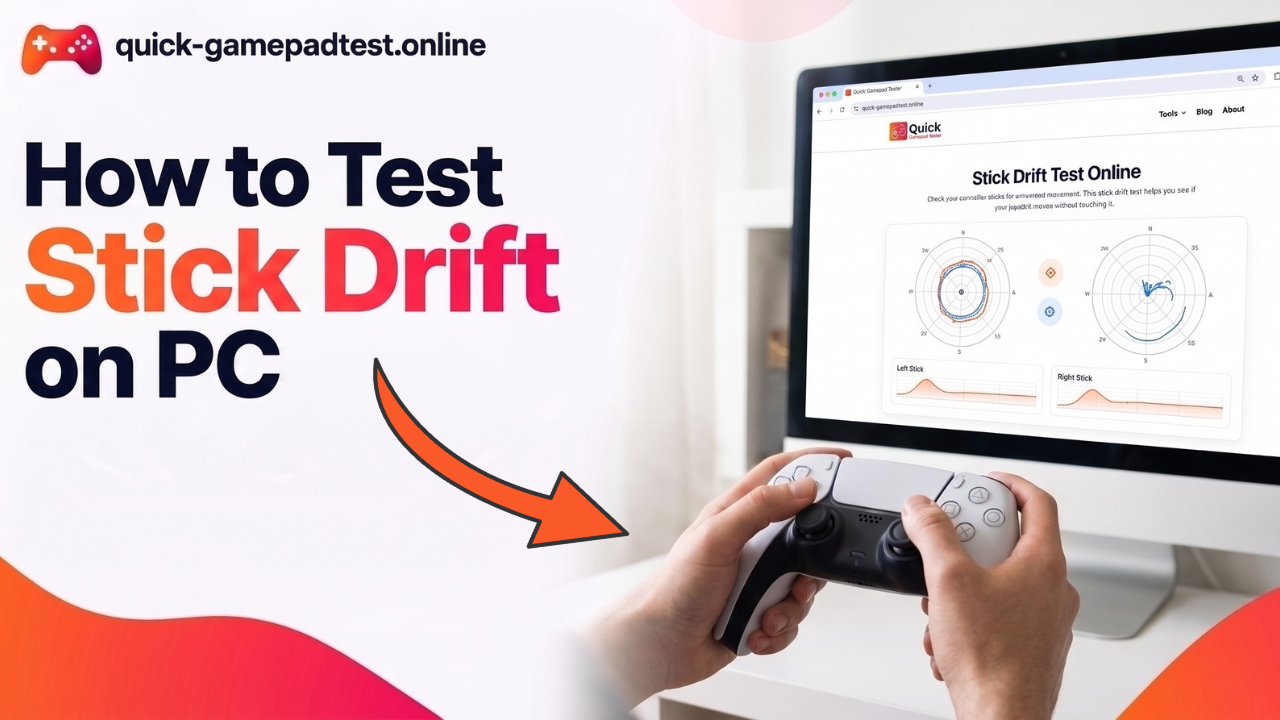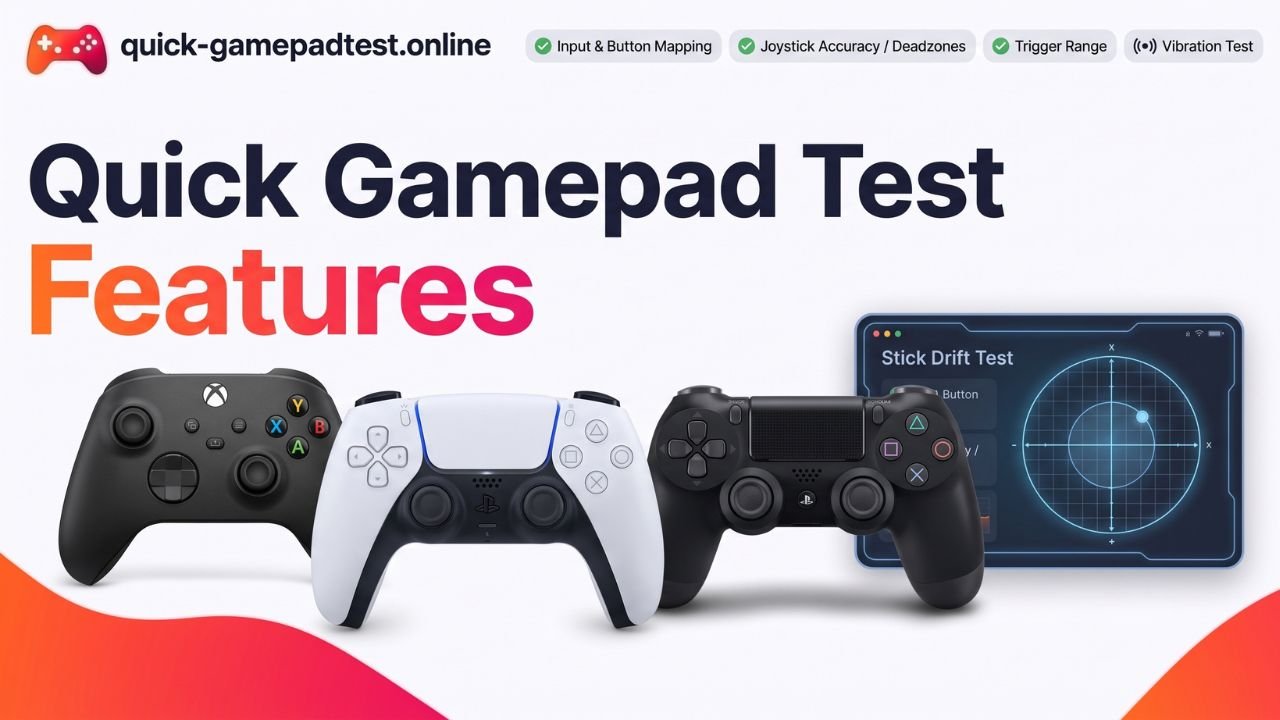

No download is needed to test a controller on a PC. Quick Gamepad Test runs in your browser, so nothing gets installed and no admin rights are required. Downloadable apps do exist, and a few of them suit certain jobs well. This guide explains when a gamepad tester download for PC makes sense, which Windows options are worth a look, and how to check a game controller with nothing installed. Anyone who only wants a fast answer can open the free online gamepad tester and press a button to test your controller right away.
Do You Need a Gamepad Tester Download for PC?
Most players do not. Windows detects a controller as soon as it connects, and a browser can read the same controller inputs through the Gamepad API. A tester only displays what the hardware sends, such as which button fired, how far a stick moved and how deep a trigger went. People who search for a gamepad tester pc download often assume an installer is the only route, yet a browser page does the same basic job.
Browser Gamepad Tester vs Downloadable Tester App
The main differences come down to setup effort and offline use. A browser-based tool opens in seconds. A downloaded app can offer more depth, but it needs a trusted source and a manual update now and then.
| Factor | Browser gamepad tester | Downloadable tester app |
| Install needed | No | Yes for most apps, a few portable ones skip it |
| Admin rights | No | Sometimes |
| Update effort | None, the page is always current | Manual download of new versions |
| Controller support | Any controller the browser detects | Depends on the app, some focus on Xbox pads |
| Offline use | Needs the page to load first | Works fully offline |
When a Downloaded Game Controller Tester App Makes Sense
Three cases stand out. The first is offline use on a computer with no connection. The second is long term logging, where an app records inputs so an unreliable button can be tracked across several sessions. The third is testing several controllers at once, which some apps handle in one window. For a single quick check, a browser still wins on speed.
Gamepad Tester Download Options for Windows
These apps appear on public download pages. Check each page for the current version and Windows support before installing, because listings change.
Gamepad Tester .NET for Xbox and PlayStation Controllers
According to Softpedia, Gamepad Tester .NET works with Xbox and PlayStation controllers through an XInput and DirectX engine and needs no installation. It shows a drawing of the gamepad in a single window and highlights each control as the player uses it. The listing names version 17.5 for Windows 11 and Windows 10.
Game Controller Tester App for Up to Four Controllers
Game Controller Tester is a free Windows 10 app that switches between up to four controllers and shows a battery indicator. Softpedia users rate it 3.4 out of 5 from 29 votes. It has one catch. The app registers input only after it enters test mode, and its page says it is unclear whether models beyond Xbox One and Xbox 360 pads work.
Xbox One Controller Tester App
The Xbox One Controller Tester checks each button on Xbox One and Series pads in a plain axis and button layout. Softpedia notes that it cannot test the Guide button and has no extra settings. That simple design suits anyone who wants to inspect a used controller without distractions.
ToS Gamepad Tester on Steam
Takeover Studios released ToS Gamepad Tester as a free Steam app in August 2022. Its page says it detects PS4 and PS5 gamepads, Xbox Series X/S, One and 360 controllers, the Steam Controller and Nintendo Pro Controllers. It also helps spot double input, stick drift and rumble motor problems.
Why Android Gamepad Tester Apps Through an Emulator Are Overkill
Some results offer Android testers such as Gamepad Tester Pro through BlueStacks. That route needs an emulator install, a Google sign in, admin rights and at least 2 GB of RAM according to the BlueStacks page. Going through all of that for a ten second button check makes little sense on a PC.
How to Test a Game Controller on Windows Without a Download
Use the Built-In Game Controllers Window (joy.cpl)
Windows includes a basic tester, and Microsoft describes the Test tab in Game Controllers as the place to verify that a controller works. Follow these steps:
- Connect the controller by USB or Bluetooth.
- Press Windows + R, type joy.cpl and press Enter.
- Select the controller and click Properties.
- Open the Test tab, then press buttons and move the sticks.
The Settings tab also holds a Calibrate button for stick calibration. This window stays basic and has a classic look. Still, if the controller appears and reacts here, Windows receives its input correctly.
Use the Quick Gamepad Test Browser Tester
Connect the controller, open the tester page and press any button so the browser wakes the device. The page then shows buttons, sticks and triggers as live feedback. The full walkthrough lives in the guide on how to use a gamepad tester on Windows PC.
Players with other pads can browse: All controller testing tools.
How to Test an Xbox One Controller on PC
Connect Your Xbox One Controller by USB or Bluetooth
For USB, pick a cable that carries data, because a charge-only cable powers the controller without sending any input. For Bluetooth, hold the small pair button on top of the controller until the Xbox button flashes. Then add it from the Bluetooth and devices page in Windows Settings. The Xbox Accessories app from the Microsoft Store also offers remapping and configuration for Xbox controllers, and it works best over USB.
What the Xbox One Controller Tester Should Show
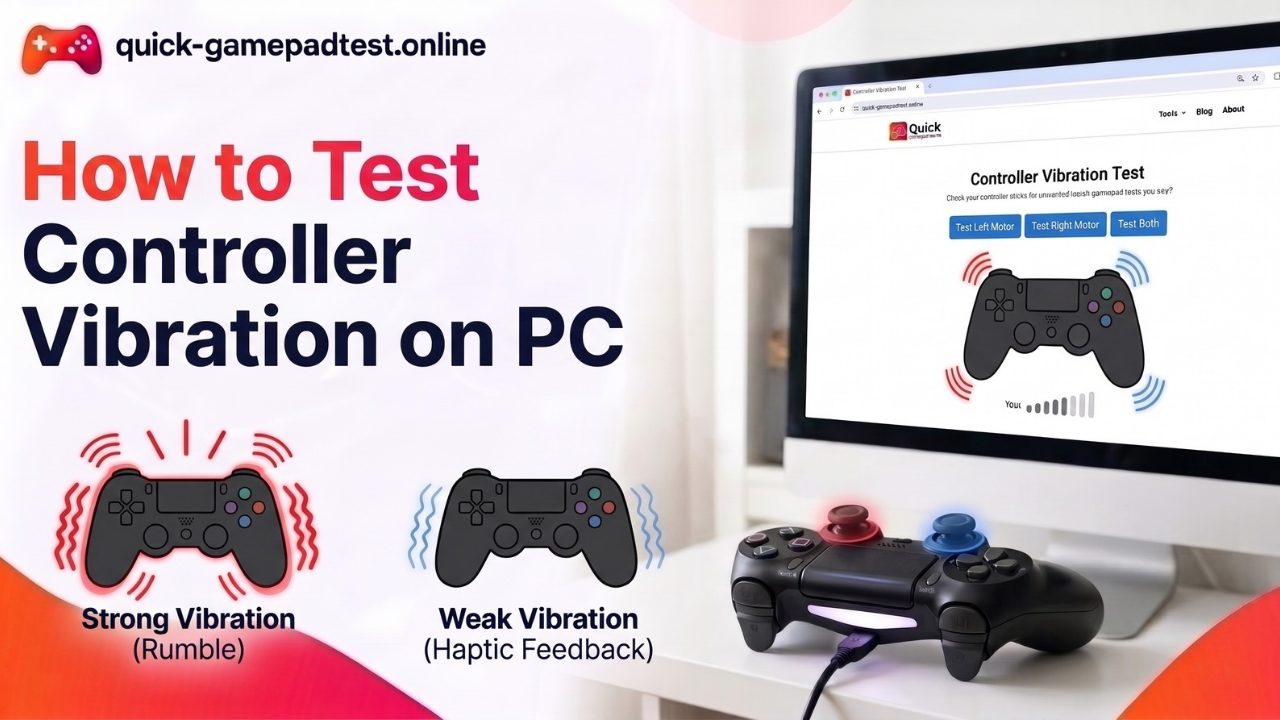
A healthy Xbox One controller lights up each face button, bumper and D-pad direction when pressed. Thumbsticks should return to center and sit near zero at rest, which helps rule out stick drift. Triggers should move smoothly through their full range, and both vibration motors should rumble during a test. Some testers cannot register the Guide button, so a missing response there does not always mean damage.
How to Download a Gamepad Tester Safely
Check the Source Before You Download
Use the developer’s own page, Steam or a trusted software library. Confirm the Windows version, the file name and the file size, then scan the file with Windows Security before opening it. Players who prefer to skip this step can read why Quick Gamepad Test is safe and private, no download needed.
Warning Signs on Gamepad Tester Download Pages
Watch for these red flags:
- Bundled installers that add extra programs
- Fake download buttons hidden among ads
- No developer name or contact details
- Requests for payment details on a free app
- Installers that demand admin rights for a simple check
A page with two or more of these signs is worth skipping.
Which Gamepad Tester Is Best for Gaming on PC?
The best pick depends on the job.
| Need | Best pick | Why |
| Quick check | Browser gamepad tester | Opens instantly with nothing to install |
| Offline check | Gamepad Tester .NET | Single window and no installation |
| Steam users | ToS Gamepad Tester | Free on Steam and covers drift and rumble |
| Xbox One controller users | Xbox One Controller Tester | Checks every button on Xbox One and Series pads |
Older pads and a USB joystick need a different approach, so read how to test a PS3 or USB controller on PC.
Gamepad Tester Not Detecting Your Controller?
Most detection problems come from the cable, the port or the pairing. A charge-only cable, a loose USB port or a Bluetooth pairing that never finished will all leave the page empty. Browsers also show a controller only after the first button press, so press one after the page loads.
Open joy.cpl next. If the controller shows there, Windows sees it and the problem sits in the browser or the app. If it does not show, swap the cable and port, then pair it again. For a longer checklist, read how to fix a gamepad tester that is not working.
FAQs
Is there a gamepad tester download for PC?
Yes. Windows apps such as Gamepad Tester .NET, Game Controller Tester and ToS Gamepad Tester on Steam exist. Quick Gamepad Test has no download because it runs in a browser.
Do I need to download a gamepad tester to test my controller?
No. A browser tester or the Windows Game Controllers window shows button, stick and trigger input without installing anything.
How do I test my game controller on Windows 11?
Connect the controller, press Windows + R, type joy.cpl and press Enter. Select the controller, click Properties and open the Test tab. A browser tester works too. Open it and press any button.
How do I open joy.cpl in Windows?
Press Windows + R, type joy.cpl and press Enter. You can also search for Set up USB game controllers in the Start menu. It works on both Windows 10 and Windows 11.
How do I test an Xbox One controller on PC?
Connect it with a USB data cable or by Bluetooth. Then open joy.cpl or a browser tester, press every button, move both sticks and squeeze both triggers.
Is it safe to download a gamepad tester app?
It is safe when the file comes from the developer, Steam or a trusted library. Avoid bundled installers and unknown developers. A browser tester removes the install risk completely.
Can I test a PS4 or PS5 controller without downloading anything?
Yes. Connect it by USB or Bluetooth, open a browser tester and press a button to wake it. The page then shows its buttons, sticks and triggers.
Is Quick Gamepad Test free?
Yes. Quick Gamepad Test is free and runs in your browser.
Why is my controller not showing in the gamepad tester?
The usual causes are a charge-only cable, a different USB port needed or an unfinished Bluetooth pairing. Press a button after the page loads, then check joy.cpl to see whether Windows detects it.
Does an online gamepad tester work on Windows 10?
Yes. A current browser with Gamepad API support reads a connected controller on Windows 10, and joy.cpl is available there too.