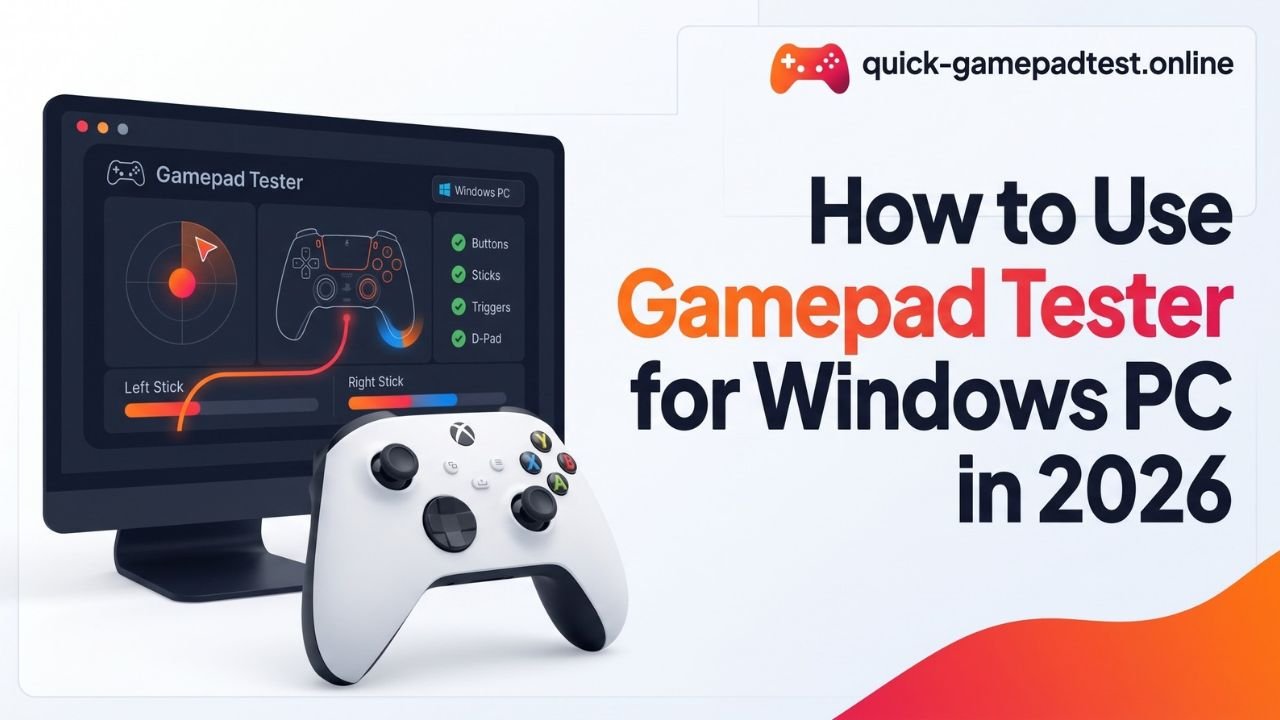

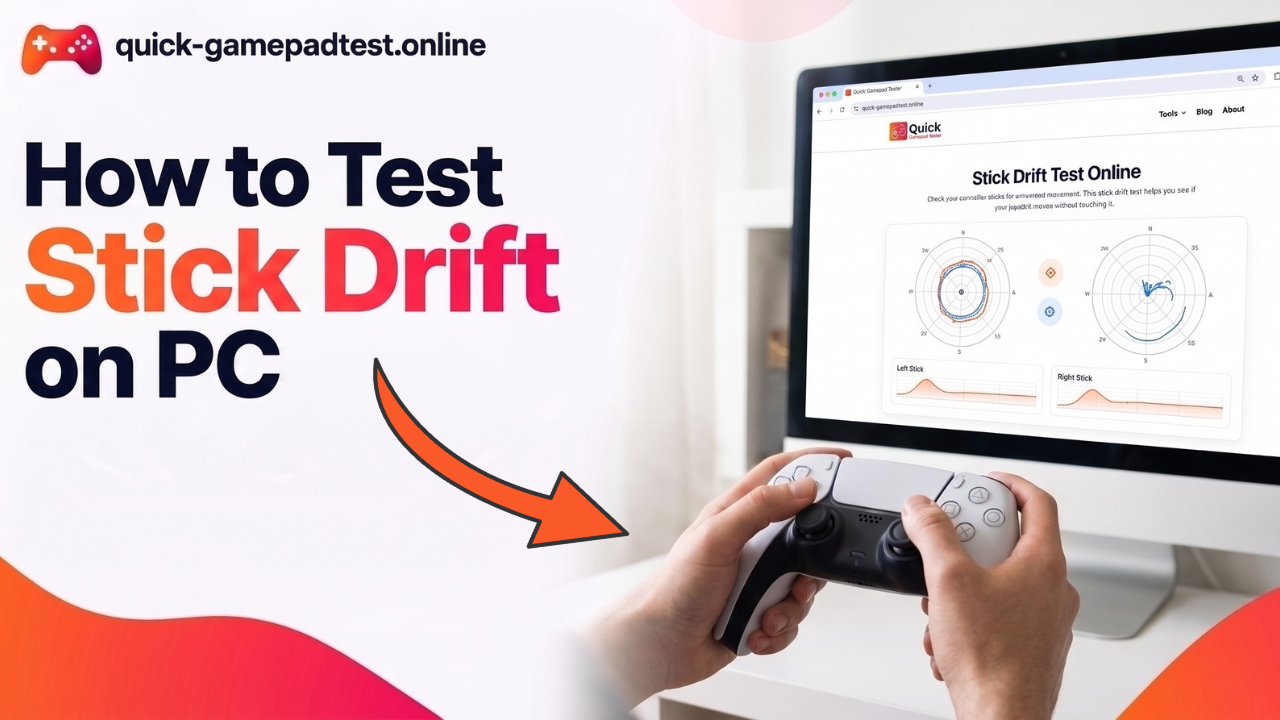
Learning how to test stick drift on PC takes about two minutes. Connect the controller, open a browser gamepad tester, leave the analog stick untouched and watch the X and Y values. A healthy stick rests close to zero. If the numbers wander or sit away from zero, the stick has drift. The free stick drift test tool shows those readings live, so players can check any pad before spending money on a fix.
What Is Controller Stick Drift in Gaming
Controller stick drift means the game registers movement while nobody touches the stick. A character walks by itself or the crosshair creeps across the screen. Inside most pads a small potentiometer tracks the stick position. As that part wears down, it sends a wrong value at rest. Dust and grime make things worse.
The problem hits every brand. In a 2022 YouGov survey for the consumer group Which?, 40% of 919 UK Switch owners reported drift. Which? director of policy and advocacy Rocio Concha said “drift problems continue to plague Nintendo Switch owners.” A quick Nintendo Switch stick drift check shows if a Joy-Con belongs to that group.
Signs of Controller Drift on an Analog Stick
Watch for these signs:
- Your character walks without input.
- The camera turns slowly on its own.
- A menu cursor slides or jumps.
- The crosshair pulls to one side in shooters such as Call of Duty.
Mild drift often hides during fast play. It shows up when you aim slowly or stand still.
Stick Drift or a Wrong In-Game Setting
Not every wobble comes from hardware. A very low deadzone can turn tiny thumb movement into steady motion. A custom mapping profile or a second connected device can also interfere and fake the same symptoms. Third-party remapping apps cause this often. The tests below separate a real fault from a settings problem.
Stick Drift Test Tutorial: How to Test Stick Drift on PC With a Browser
The browser route is the fastest because it needs no download.
Connect Your Controller via USB or Bluetooth
Use a USB wire for the cleanest signal. A wireless pad can pair wirelessly over Bluetooth in Windows 10 and 11. Open the gamepad tester and press any button so the page can detect the pad. Browsers hide gamepads until the first press. Set the controller on a flat surface and leave both sticks alone.
Press Each Button First to Confirm Input
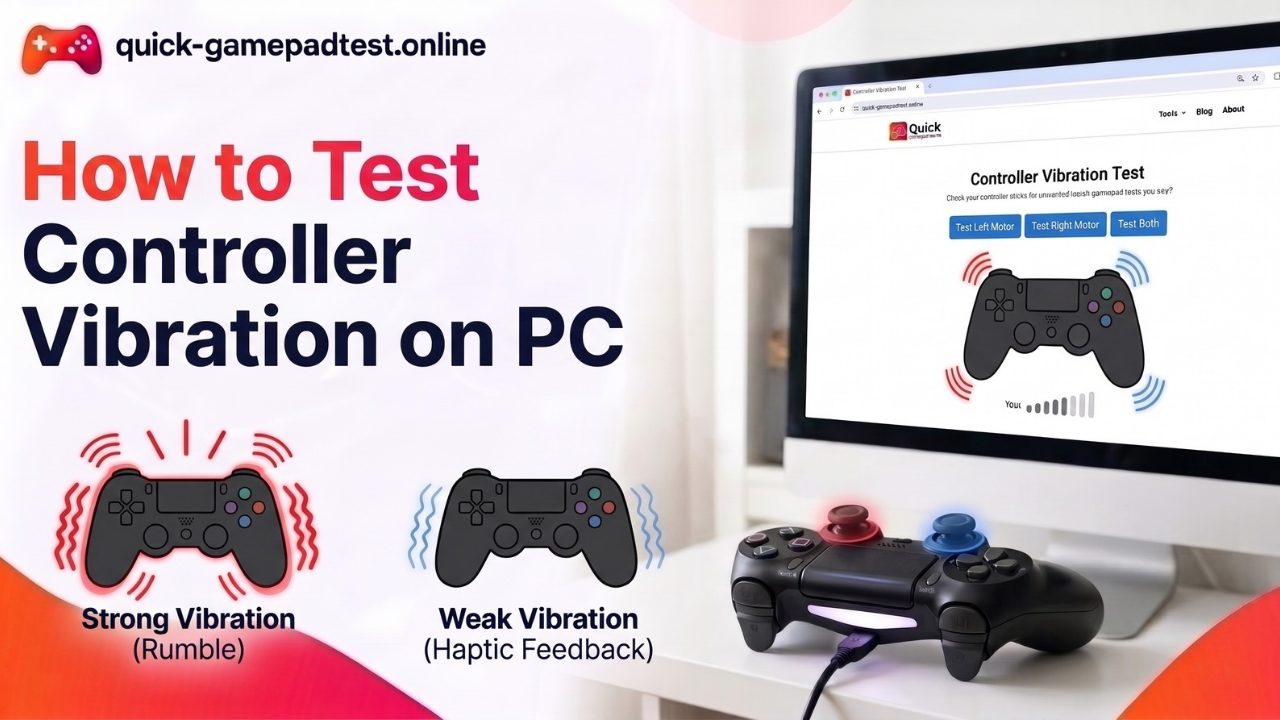
Press every button and squeeze each trigger. The page should light up each one. A dead button points to a wider fault than drift. Test vibration too so you know the rumble motor works.
Read the Stick Drift Test Values at Rest
Release both sticks and watch the left stick and the right stick separately. Values run from -1 to 1 with 0 at the center. A healthy stick sits near 0.00 on both axes and stays calm. If the stick registers movement while untouched or the number keeps creeping, the stick has drift. Pads differ, so treat tiny flicker as normal and a steady offset as a warning. Curious about the method behind those numbers?
Read: how the stick drift checker works.
Rotate the Analog Stick to Check Full Range
Rotate each stick slowly around its rim. The trace should draw a smooth circle with no flat spots or jumps. Let go and confirm it snaps back to zero. Repeat a few times because some pads drift only after a push in one direction. An axis slider on the page gives a second view of the same data.
How to Test Controller Stick Drift Using Windows and Steam
Test a Controller Using Windows Game Controller Settings
Press the Windows key and R, type joy.cpl and hit Enter. Select the pad and click Properties. The Test tab shows a crosshair for each stick. Leave the sticks alone. The cross should sit in the center. If it slides away, the drift is confirmed without any extra software.
Check Controller Drift in Steam Input
Open Steam settings and choose Controller to reach the calibration and test screen. Steam draws each stick as a dot. A dot that leaves the center with no touch confirms drift. Steam Input can add its own mapping and deadzone layer, so test with one profile at a time.
Test an In-Game Deadzone Setting
Go to settings in the game and find the adjustable inner deadzone slider. Drop it to zero and release the stick. If the camera still moves, the drift is real. If it stays still, the old deadzone was simply too small. Put the slider back afterward. Use input lag and deadzone testing for a closer look at how each setting shapes the signal.
How to Test PS4 and Xbox Controller Stick Drift on PC
Test a PS4 Controller Using a Cable or Bluetooth
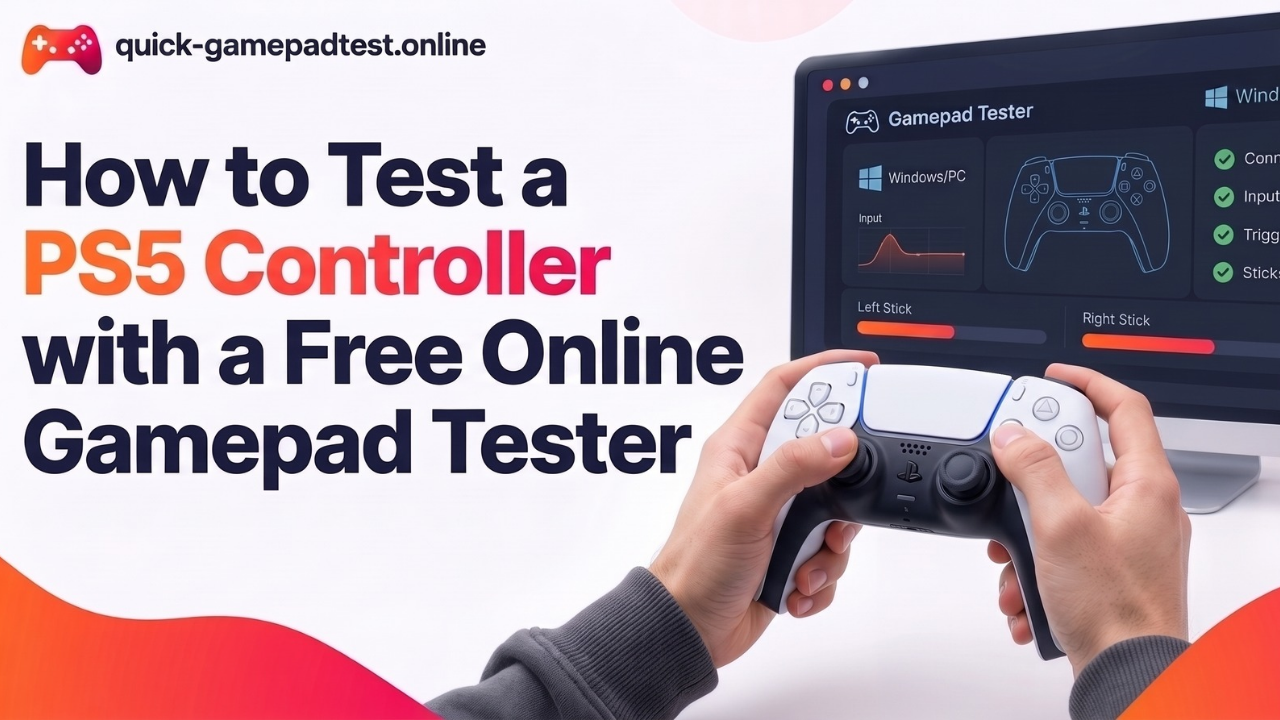
Plug a PS4 pad into the PC with a micro USB cable. To pair by Bluetooth, hold the PS and Share buttons until the light bar flashes. Steam can map the pad or the browser tester can read it. Follow the PS4 controller stick drift check for full steps. Owners of a newer PlayStation pad can run the PS5 controller stick drift check instead.
Test an Xbox Controller Using the Accessories App
Microsoft added a thumbstick recalibration tool to the Xbox Accessories app on Windows. Microsoft says it fixes minor centering problems but drift from normal wear may still need repair. Get the Xbox Accessories app from the Microsoft Store and connect the pad by USB. Run the Xbox controller stick drift check first to see the raw numbers.
How to Tell If Your Controller Has Stick Drift or a Software Problem
Troubleshooting Order Before You Blame the Stick
- Unplug every other controller and virtual device.
- Close Steam and any remapping app.
- Try another USB port and skip hubs or adapters.
- Restart the PC and test again in the browser.
If the stick still drifts after these steps, hardware is the likely cause.
Test the Gamepad on Another PC
The best way to test is to swap machines. Plug the same gamepad into another PC or a console. Drift everywhere points to hardware. Drift on one PC only points to software or a driver.
How to Fix Controller Stick Drift After the Test
Start with the cheapest steps. Each fix controller step below costs little or nothing.
Clean Around the Analog Stick
Turn the pad off. Spray compressed air around the stick base while you rotate the stick. For sticky grime, dip a cotton swab in isopropyl alcohol and wipe around the stick base. Let it dry fully. Never pour liquid into the shell.
Reset and Recalibrate the Controller
Many pads have a tiny reset hole on the back. A DualShock 4 has one. Press it with a pin for a few seconds and reconnect the pad. Then recalibrate it using the steps below.
Calibrate the Stick in Windows
In joy.cpl open Properties then Settings and click Calibrate. Follow the wizard and keep your thumbs off the sticks unless a prompt asks for movement. A wrong move during calibration saves a wrong center.
Raise Deadzones in Small Steps
A deadzone hides drift but cannot heal wear. Raise it by a few percent at a time in the controller settings of the game or Steam. A large dead zone makes aiming sluggish and costs precise control. Think of it as a band-aid. Wondering if a website can do more? Read can an online tool fix stick drift.
Update Controller Firmware
Use the maker’s app to update controller firmware. Controller software updates may improve calibration and compatibility. The Xbox Accessories app covers Xbox pads.
Replace the Stick Module
If drift survives every step, replace the stick module. Microsoft sells official parts for Xbox Wireless Controllers and the DualSense Edge uses swappable modules. Recalibrate after the swap. A Hall effect upgrade uses magnets instead of contact parts, which avoids the wear behind most drift and comes closest to a permanent fix.
Why Stick Drift Keeps Coming Back on PC
Steam Mapping and Windows Calibration Conflict
Windows and Steam keep separate calibration values. Players often fix the center in joy.cpl and then watch Steam show the drift again. Calibrate in the place where you play and switch off extra mapping layers.
Gaming Habits and Wear That Cause Drift
Hard thumb pressure and long gaming sessions wear stick parts faster. Which? also noted that lab tests may miss everyday hazards such as dust and crumbs. Wipe your hands before play and store the pad in a case.
FAQs
How do you test stick drift on PC?
Connect the controller by USB or Bluetooth, open a browser gamepad tester and press any button so the page can detect the pad. Release both sticks and watch the X and Y values. A healthy stick stays near 0.00. A steady offset or a number that keeps creeping means drift. Windows joy.cpl and Steam Input offer the same check without a website.
How do I know if my controller has stick drift?
A controller has stick drift when the game registers movement while nobody touches the stick. Common signs include a character that walks on its own, a camera that turns slowly and a menu cursor that slides. A test confirms it. If the same unwanted input appears in several games, the pad itself sends the signal.
What reading counts as stick drift?
Many testers call a resting value above roughly 5% drift and treat 5% to 10% as borderline. Tools use different limits, so compare the same stick over time. Small flicker near zero is often normal. A higher polling rate can make that flicker easier to see but does not cause drift.
Can a browser test stick drift without extra software?
Yes. A browser gamepad tester reads the controller through the Gamepad API and needs no install. Most Chromium browsers on Windows and Android detect a connected pad after the first button press. Close other controller apps first so they cannot interfere with the reading.
Does the same test work for PS4, Xbox and Switch Pro controllers?
Yes. The browser test reads any pad that Windows recognizes, including PS4, Xbox and Switch Pro controllers. Connect the pad by USB or Bluetooth and run the same rest and rotation steps. Steam may remap the pad, so close it or turn off the profile for a clean reading.
Why does my controller drift only on PC?
A software layer usually causes it. Steam Input profiles, remapping apps, a second connected device or a wrong calibration can all fake drift. Microsoft support threads describe Xbox pads that drift on Windows 11 but stay still on a console. Close Steam, calibrate in joy.cpl, update the controller firmware and test again. If the pad drifts on another PC too, the hardware is worn.
Can calibration or deadzones fix stick drift for good?
Not for worn parts. Calibration resets the center point and helps with minor centering errors. A deadzone only hides small drift and makes aiming sluggish when raised too far. Once the potentiometer wears out, the lasting fix is a new stick module or a Hall effect upgrade.