
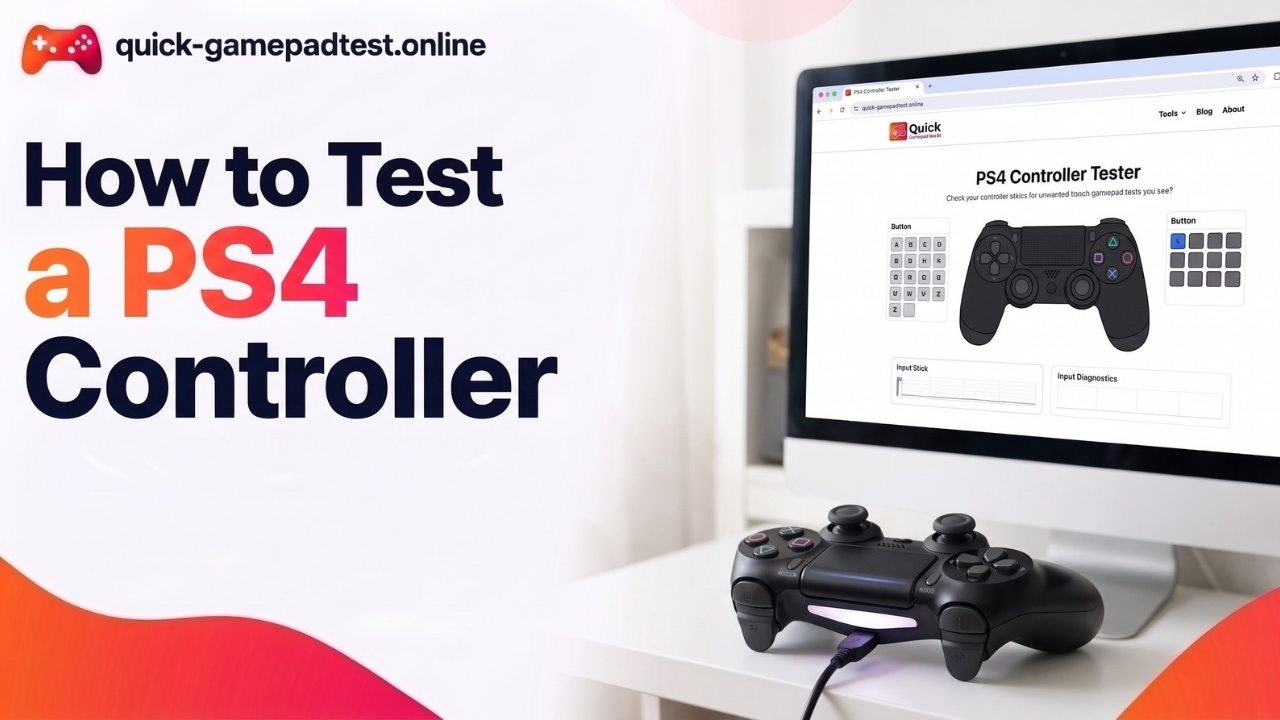
To test a PS4 controller, connect it by USB or Bluetooth, open a gamepad tester in a browser and press any button to wake it. Then check the buttons, sticks, triggers and touchpad click one by one. The free PS4 controller test on this site shows every input live.
Sony passed 70.6 million PS4 sales by December 2017, and each console shipped with a DualShock 4. Then chairman Andrew House called the system “the best place to play.” Years of play wear a pad down.
How to Test a PS4 Controller Step by Step
The whole check takes about two minutes and needs no download.
Connect Your Gamepad by USB or Bluetooth
USB is the easiest start. Plug a data ready micro USB cable into the pad and the computer. A charge only cable powers the pad but sends no input, so it never appears.
For a wireless link, Sony says to hold the Share button and the PS button together until the light bar flashes. The pad then shows up in Bluetooth settings as Wireless Controller.
Open a Gamepad Tester and Press Buttons
Open the page in Chrome or Edge, then press a button. Browsers hide a gamepad until it sends input. MDN explains that a page learns about an already connected pad only after a button press or axis move.
Read the Results Live
The page reads the pad instantly in the browser. Each button lights up while pressed, each stick moves a dot and each trigger fills a bar. An input that stays dark has a fault.
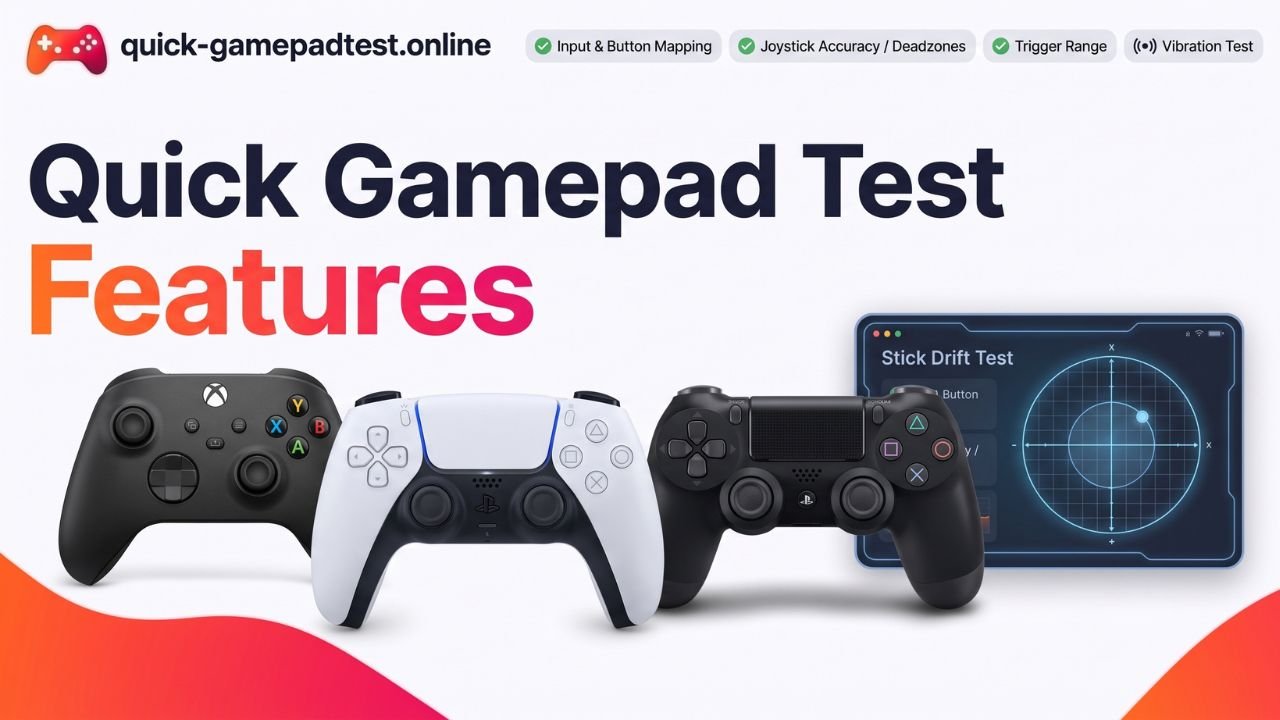
What a Gamepad Tester Checks on a DualShock 4 Wireless Controller
A browser reads the DualShock 4 through the Gamepad API. That covers most inputs but not every part.
| Input | What the tester shows | What stays invisible |
| Buttons and D-pad | Light up on press and release | Nothing |
| Analog sticks | Live X and Y values | Nothing |
| L2 and R2 | A value from 0.00 to 1.00 | Nothing |
| Touchpad | The click as a button press | Swipes and multi touch |
| Light bar | Usually nothing | Color and brightness |
| Speaker and headset jack | Nothing | Audio output |
The full list of what the PS4 tester checks sits on the tool page.
How to Test PS4 Controller Buttons and Touchpad
How to Test All Buttons on a PS4 Controller
Press the buttons slowly and one at a time. That means the four face buttons, the D-pad directions, L1, R1, Share, Options and the PS button. Push each stick straight down to check L3 and R3. Press every button twice, once quickly and once held. A healthy button registers once and goes dark on release. A bad one sticks, skips or fires twice.
How to Test Touchpad on a PS4 Controller
Press the touchpad down until it clicks. Try the left, center and right sides. Each click should show as a button press.
What a Browser Cannot Read on the Touchpad
Most browsers read only the click. They skip finger swipes and two finger touches. A swipe that does nothing on screen does not prove a fault. A game that uses the touchpad gives the real answer.
How to Test Analog Sticks and Triggers
Stick Rest Values and Drift
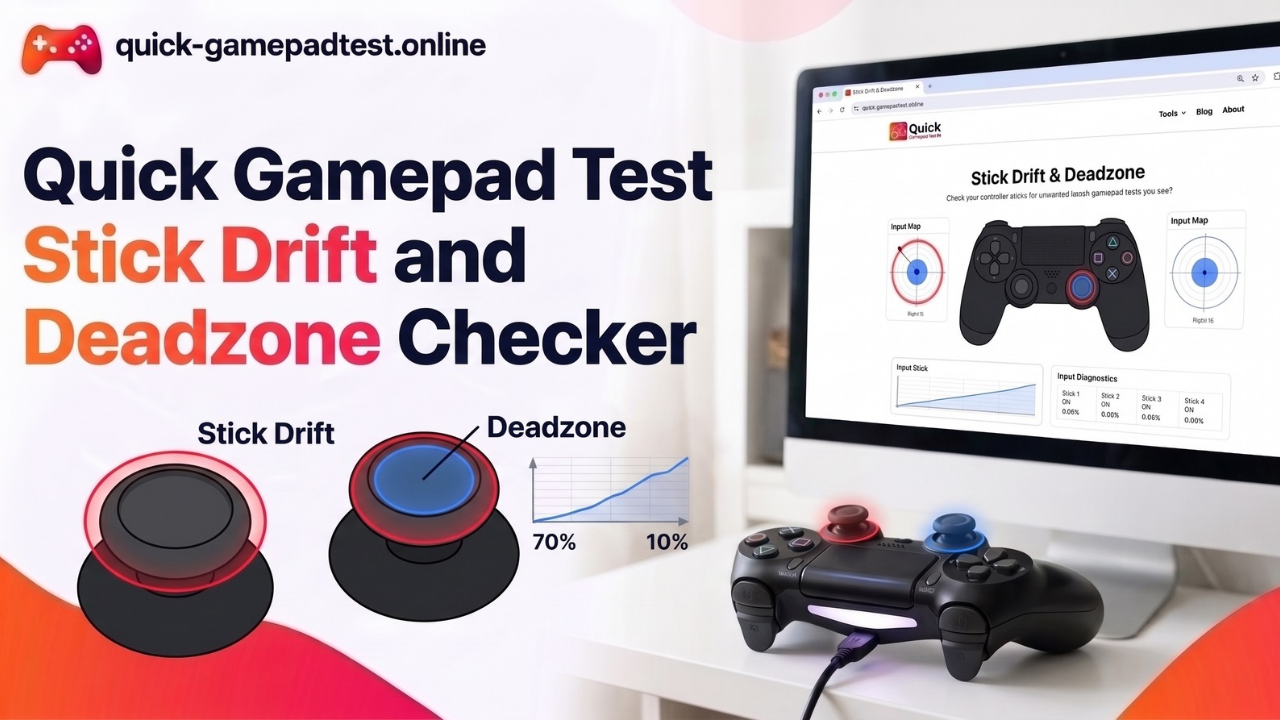
Let go of both sticks and watch the X and Y values. A healthy stick rests near 0.00 and a tiny flicker is normal. A value far from zero, or a dot that creeps on its own, points to joystick drift. Games can hide small drift with a deadzone, but the wear stays. Next, move each analog stick in a slow full circle. The dot should trace an even loop and reach the edge on every side. For a deeper look, check a PS4 controller for stick drift with the dedicated test.
L2 and R2 Trigger Range
Pull each trigger slowly. The value should climb smoothly from 0.00 to 1.00. Some pages show 0 to 100 percent or 0 to 255 instead. A jump from zero to full, or a trigger that stops short, signals a worn part.
How to Test If a PS4 Controller Is Working in 60 Seconds
Run this pass or fail check in order.
- Connect the pad with a data cable and press any button. The page must show a connected controller.
- Press the face buttons and each D-pad direction. Each must register once.
- Press L1, R1, Share and Options.
- Release both sticks. Both must rest near 0.00.
- Pull L2 and R2 slowly. Values must rise without jumps.
- Click the touchpad. The click must register.
A pad that clears all six steps works. If one step fails, swap the cable and USB port, then run the check again before blaming the controller.
How to Test Controller on PS4 (Console Checks)
Console checks need no tester at all.
USB Charge and Data Check
Plug the pad into the PS4 with the USB cable. Sony’s controller guide says a full charge from empty takes about 2 hours. It also says to press and hold the PS button to see the battery level on screen. A pad that charges but never gets recognized over USB usually has a bad cable or port.
Wireless Controller Bluetooth Check
Unplug the cable and press the PS button. The light bar should light up and the console should pick up the pad wirelessly. If pairing fails, press the small reset button on the back with a pin, then plug in and pair again.
Light Bar, Speaker and Motion Sensor
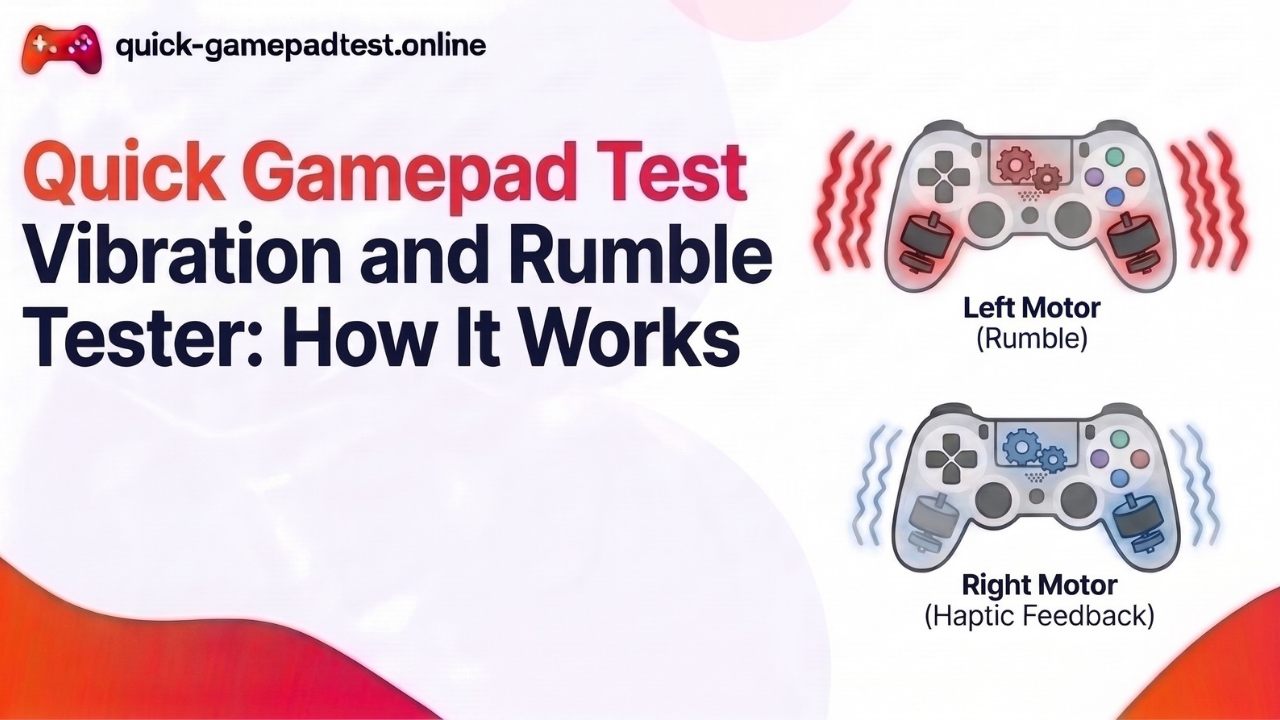
Play any game sound to hear the built-in speaker. Plug headphones into the 3.5mm jack and push the plug in all the way. For a full walkthrough, read the PS4 controller vibration, motion sensor and speaker test. Vibration problems often come from the setting itself, since Sony notes the function can be switched off.
USB or Bluetooth: Which Is Better to Test a PS4 Controller?
USB comes first. A wired link removes battery and pairing issues, so it gives a clean baseline. Repeat the checks over Bluetooth next. A pad that passes on USB but fails wirelessly usually has a pairing problem or a low battery.
How to Fully Test Your PS4 Controller Including Touchpad
This table covers every part in one pass.
| Part | How to check | Pass sign |
| Connection | Pair by USB, then Bluetooth | Pad appears each time |
| Buttons | Press each one twice | One clean register per press |
| Sticks | Hands off, then full circles | Rest near 0.00 and an even loop |
| Triggers | Pull L2 and R2 slowly | Smooth 0.00 to 1.00 sweep |
| Touchpad | Click left, center and right | Each click registers |
| Battery | Press and hold the PS button | Level shows on screen |
| Audio and rumble | Play a game | Sound and vibration work |
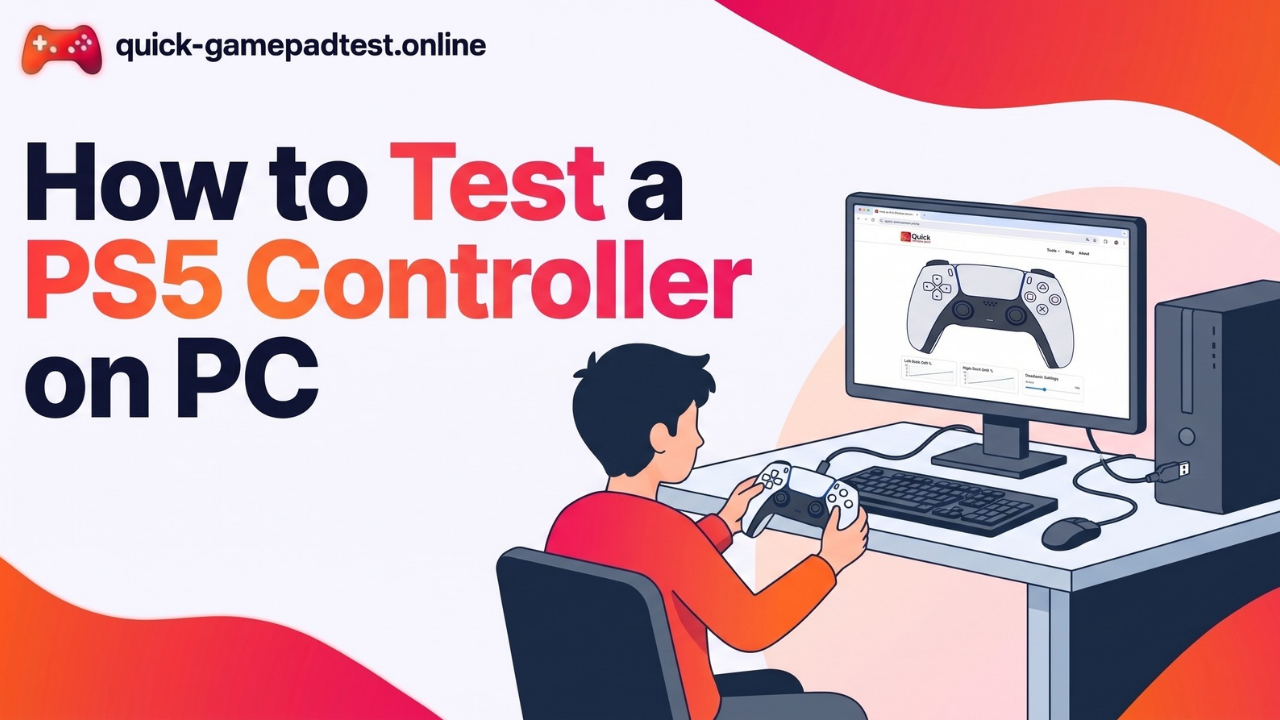
Players on Windows can follow the guide to test a PS4 controller on PC. Anyone with a phone can connect and test a PS4 controller on a phone in a few taps.
Does a Controller Tester Work With PS5, PS3 and Xbox Controllers?
Yes. The page reads any pad the browser detects, so a PS5 DualSense over USB follows the same steps. An Xbox controller works too, including Xbox One and Xbox Series pads. A PS3 pad can need extra setup on Windows. The PS5 controller guide covers DualSense in detail.
Why Does My Controller Work on PS4 but Not in the Tester?
Three causes cover most cases. A charge only cable sends power but no input. A browser hides the pad until a button press. Another app such as Steam can also grab the controller first, so close it and try again. The guide on a gamepad tester that is not working covers detection issues step by step.
FAQs
How do you test if a PS4 controller is working?
Connect it by USB or Bluetooth, open a browser gamepad tester and press any button. A working DualShock 4 lights up every button, rests near 0.00 on both sticks and sweeps both triggers from 0.00 to 1.00.
Can a PS4 controller be tested without downloading software?
Yes. Browser pages use the built-in Gamepad API, so nothing needs installing. Chrome and Edge handle it well.
Can the touchpad on a PS4 controller be tested in a browser?
Only the click. Most browsers expose the touchpad press as a button but not swipes or multi touch.
What reading means a PS4 stick has drift?
A stick at rest should read near 0.00 on both axes. A steady value far from zero, or a dot that moves untouched, signals drift.
Why does a PS4 controller not show up in a tester?
The usual causes are a charge only cable, a missing first button press, a Bluetooth pairing problem or another app such as Steam holding the pad. A new cable or USB port fixes most cases.