
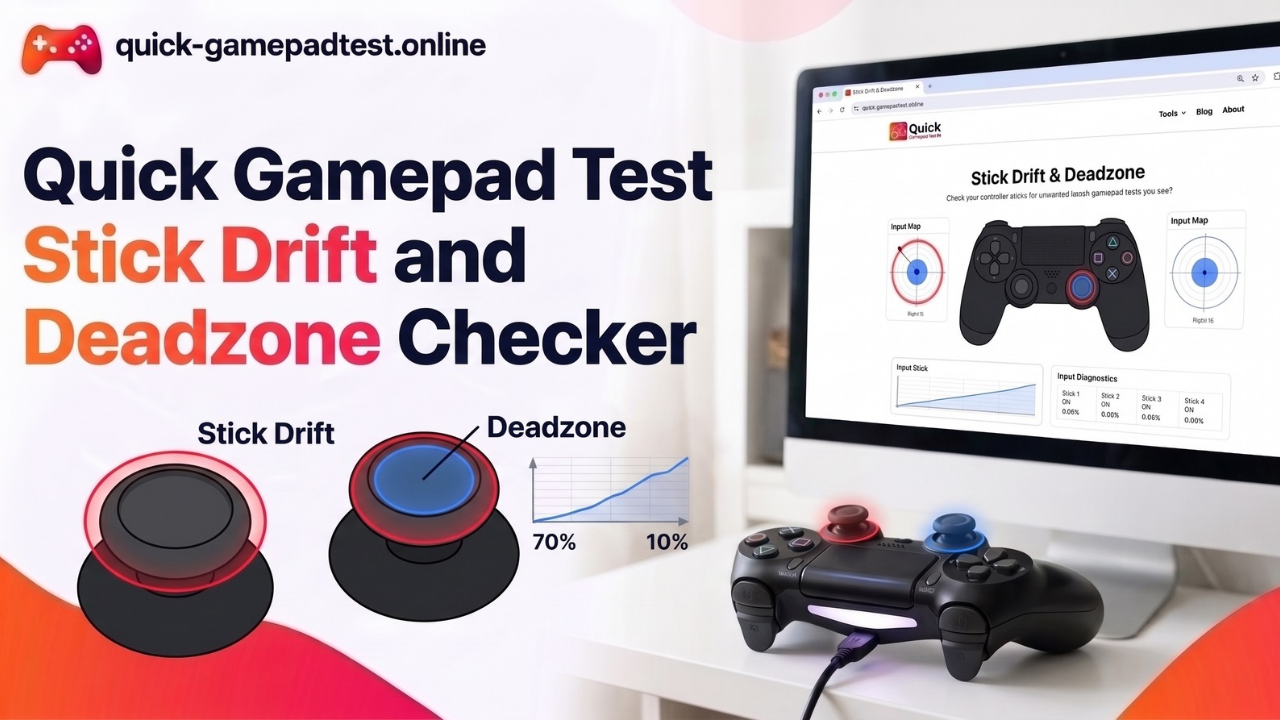
Quick Gamepad Test is a free stick drift checker that runs in your browser and reads live stick values from your controller. The drift test shows where each stick rests when you let go. The deadzone radar shows how far a stick must move before a game would react. Together they tell you whether you have a real fault or a small offset that a setting can hide. For device steps, follow the step-by-step guide to testing stick drift on PC.
What the Stick Drift Checker Measures
The checker measures one thing: where your analog sticks sit and how they move. It does not judge your controller for you. It gives you clear numbers and a visual, and you read them. That keeps the result honest and easy to repeat.
Live X and Y Values From Each Analog Stick
Each stick has two axes. X tracks left and right movement, and Y tracks up and down. The checker shows an X value and a Y value for the left stick and for the right stick. Push a stick and the numbers change. Let go and they should settle near 0.00. The stick drift test works as a live drift detector, so you can watch every change as it happens.
How the Browser Reads Your Controller Input
Your browser talks to the controller through the Gamepad API. MDN Web Docs explains that each axis is a floating point value from -1.0 to 1.0, so a centered stick should report close to 0. The same page lists the feature as available across browsers since March 2017. Press any button first so the browser detects your controller. The checker then works from the values the browser reports.
How to Read Resting Values on the Drift Test
A resting value is the reading a stick shows when nobody touches it. Place the controller on a flat surface, let go of both sticks, and wait a few seconds. That removes thumb pressure from the result.
What a Healthy Resting Value Looks Like
A healthy stick rests at or very near 0.00 on both axes. A tiny reading such as 0.01 is normal because no sensor is perfect. What matters is that the number stays steady and returns to the same spot every time you release the stick.
Small Offsets vs Real Stick Drift
Testers and reviewers draw the line in different places, from about 0.02 to 0.10. Treat those numbers as guidelines and not rules. A small steady offset is often a quirk of manufacturing. A reading that creeps higher over weeks, or one that jumps around, points to wear.
Wear is common. A YouGov survey of 919 UK adults for Which? found that 40% of Nintendo Switch owners had experienced Joy-Con drift. Of those owners, 57% said it began within the first year. A later Which? teardown suggested that wear on the circuit board, possibly combined with dust, may cause the fault. Rocio Concha, director of policy and advocacy at Which?, said drift problems “continue to plague Nintendo Switch owners.”
Why Left and Right Stick Readings Can Differ
Each stick has its own sensors and its own spring, so each one wears at its own speed. Most games use the left stick for movement, which means it often works harder. The Which? teardown found the left stick was the one most commonly affected. Judge each stick on its own reading and never assume one stick predicts the other.
What Stick Drift Looks Like on Screen
A Dot That Rests Off Center
On the deadzone radar, a healthy stick leaves the dot in the middle of the circle. A drifting stick parks the dot away from the center while your thumbs stay off the controller. The farther the dot sits from the middle, the larger the offset.
Values That Keep Moving When You Let Go
Watch the numbers as well. A drifting controller can show X or Y values that keep changing with no touch at all. Some sticks settle on a wrong value. Others creep slowly. Both count as drift when the controller sits still on a flat surface.
Drift in One Direction vs Random Drift
Steady drift toward one side often means a worn or off center sensor. Random jitter around the center can point to dirt or an unstable contact. Note which direction the dot favors. That detail helps a repair shop and helps you choose a deadzone.
How the Deadzone Radar Works
What a Deadzone Is and Why Games Use One
A deadzone is a small area around the center where a game ignores stick input. Developers add it so that tiny sensor noise does not move the camera or the character. Every game sets its own size, which explains why one controller can feel fine in one title and poor in another.
What the Radar Shows
The radar plots your stick position inside a circle. The center marks the neutral point and the edge marks full tilt. Move the stick and the dot follows. This turns raw numbers into a picture you can read at a glance, and it makes a deadzone test quick.
How the Deadzone Radar Reveals Drift That Games Hide
A game deadzone can cover mild drift, so a worn stick may seem fine until the offset grows past the filter. A browser test reads the controller directly, so no game setting sits between you and the number. The radar shows the offset early, before it costs you a match.
How to Match Your Deadzone to Your Drift Reading
Why a Deadzone Should Sit Just Above Your Resting Offset
Use your resting value as the floor. If the stick rests at 0.06, a deadzone below 0.06 lets the drift through. A setting slightly above, such as 0.08, covers it. Test again after a few weeks because wear changes the number.
What Happens When the Deadzone Is Too Small or Too Large
A deadzone that is too small causes ghost movement. The camera slides or the character walks on its own. A deadzone that is too large costs precision. Small aim adjustments get ignored and the stick feels dead near the center. Aim for the smallest value that stops the ghost movement.
When a Deadzone Fix Is Not Enough and You Need Repair
A deadzone hides drift. It does not remove it. If the offset keeps growing, or the setting you need makes the stick feel numb, repair or replacement is the honest answer. The guide on can an online tool fix stick drift explains where software helps and where it stops.
Stick Drift Test Results by Controller
Xbox, PS5, PS4 and Switch Readings Compared
The reading method stays the same on every controller. A rest value near zero is healthy on an Xbox stick drift test, a PS5 stick drift test and a PS4 test. A Switch Pro controller that your browser detects follows the same logic. Only the connection steps differ. Use the guide that matches your device for pairing and setup.
Limits of an Online Stick Drift and Deadzone Checker
What the Tool Can Show and What It Cannot Fix
The checker shows. It does not repair. It cannot open your controller, clean a sensor or change the hardware. It also cannot change the deadzone inside your games. You apply that value in each game’s settings or in your platform controller settings.
Browser Differences That Can Change Readings
Browsers, operating systems and connection types can report stick values slightly differently. A USB cable and a Bluetooth link may not give identical numbers. Run each test in the same browser with the same connection so you compare like with like.
Quick Gamepad Test Stick Drift Checker Next Steps
Run the checker again whenever you notice ghost movement, and once every month or two if you play often. Browse all Quick Gamepad Test features to check buttons, triggers and vibration on the same controller. Then use the device guide that fits your setup to apply your deadzone.
FAQs
What is a good resting value on a stick drift test?
A healthy stick rests at or near 0.00 on both axes. Small readings such as 0.01 are normal. Many testers treat values above roughly 0.02 to 0.10 as a warning sign, so watch whether the number stays steady or grows over time.
Can a deadzone fix a drifting controller?
A deadzone hides drift by telling the game to ignore small input. It does not repair the sensor. It works well for mild drift and stops working once the offset grows past the setting.
How often should I test my controller for drift?
Test when you notice ghost movement. If you play often, test every month or two. Regular checks show whether the resting value is growing.
Do I need to test both sticks?
Yes. Each stick has its own sensors and wears at its own pace. One stick can read perfectly while the other drifts.