
What Is a Gamepad Tester for PC and Windows?
A Gamepad Tester is a browser-based tool that helps you test whether your controller is responding correctly on a PC. Instead of starting a game and guessing why a button or joystick is not working, you can connect the controller and see its inputs right on the screen.
For someone searching for a Gamepad Tester for PC / Windows, the main purpose is simple. You connect a controller through USB or Bluetooth, open the tester in a supported browser, press a button, and check the live input shown on the page.
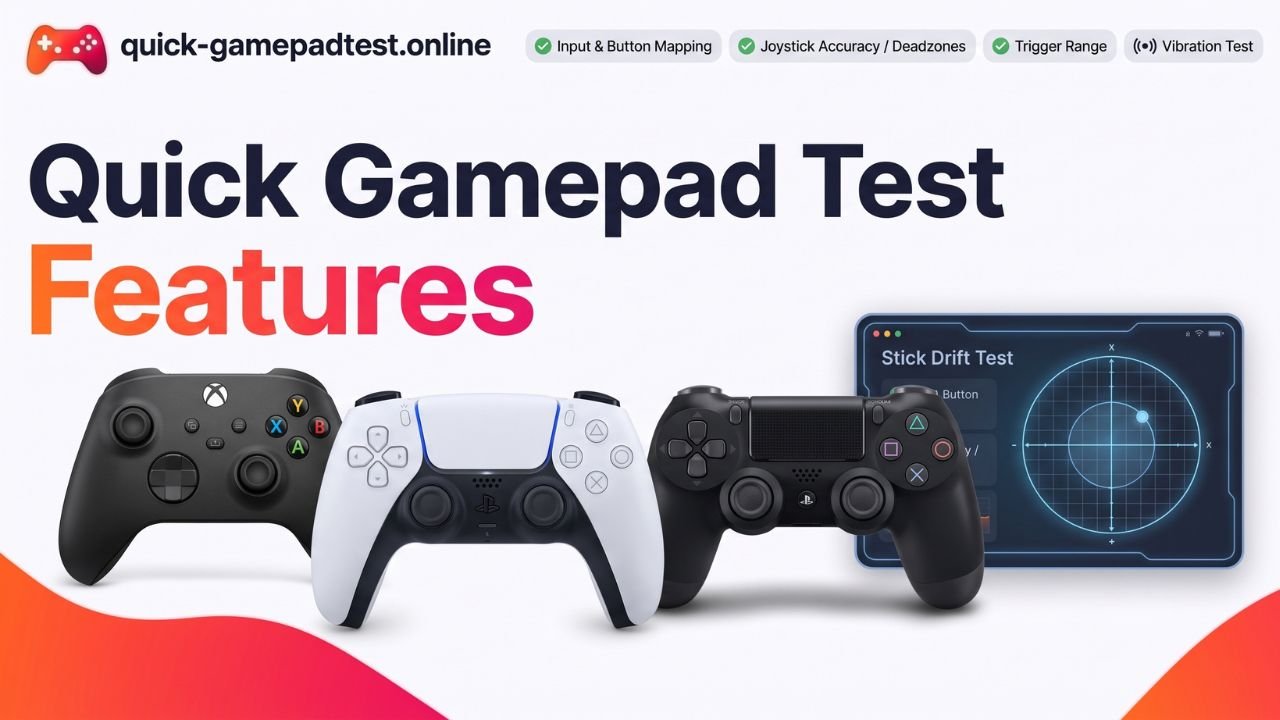
You can use a Windows Gamepad Tester to check buttons, D pad directions, analog sticks, triggers, vibration, and possible stick drift. This helps you understand whether the problem comes from the controller or from a particular game.
How to Use Gamepad Tester on Windows PC
Using a PC Gamepad Tester does not require technical knowledge. You mainly need a controller, a Windows PC, and a browser that supports the Gamepad API.
If you want to start testing right away, open the Gamepad Tester online tool and connect your controller. The tool works directly in the browser, so you do not need to install any separate controller testing software.
Step 1: Connect Your Gamepad to the PC
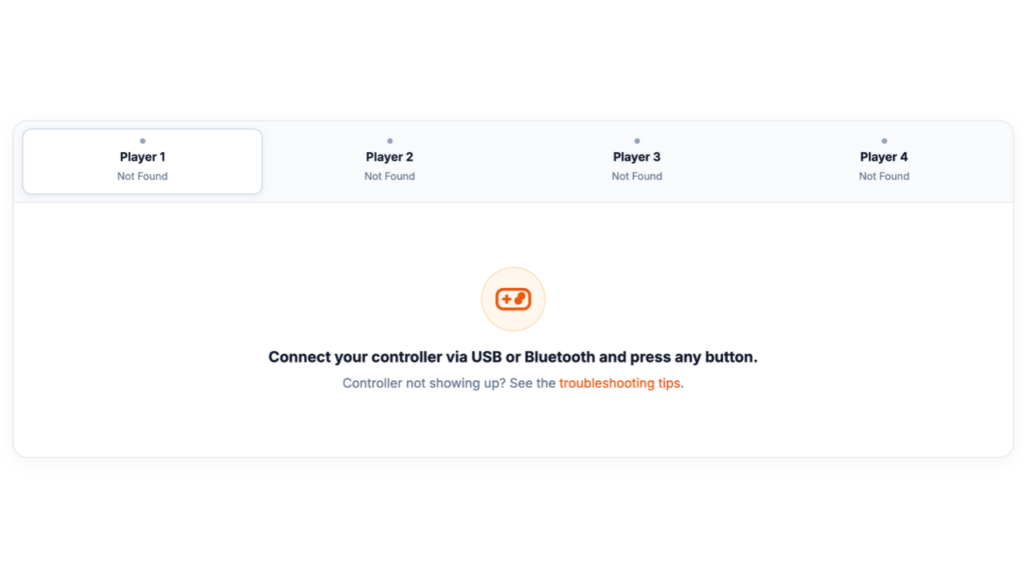
First, connect your controller to your Windows PC.
You can usually use a USB cable. If your controller supports Bluetooth, you can also pair it wirelessly.
For your first test, make sure Windows recognizes the controller. A wired USB connection helps when you are troubleshooting because it removes possible Bluetooth problems.
Once the controller is connected, keep it powered on before you open the tester.
Step 2: Open a Gamepad Tester in Your Browser
Open a supported browser on your Windows PC and visit a browser-based gamepad testing tool.
A Gamepad Tester Windows tool can show the controller and its available inputs after the browser detects the device. You may see buttons, axes, trigger values, and other details depending on your controller.
You do not need to understand every number on the screen. For a simple test, press a control and see whether the matching input changes.
Step 3: Press a Button to Detect the Controller
After connecting the controller, press any button or move an analog stick.
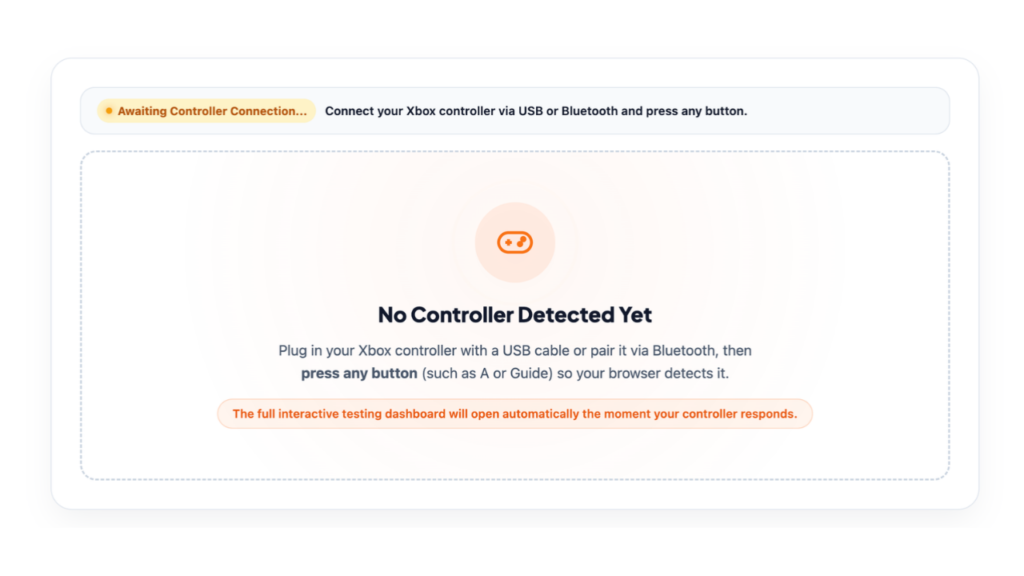
Some browsers show the connected gamepad to the page only after you interact with the controller. Once it appears, you should see its live input information.
If the controller does not appear, do not assume it is broken. First check the USB or Bluetooth connection and press another button.
How to Test Gamepad Buttons on Windows
Once your controller is detected, start with the buttons.
Press every face button one by one. Then test the D pad, shoulder buttons, stick buttons, and menu controls.
A working button should produce a visible change on the tester. Some testers show button values that change when you press and release the control.
If every button responds except one, that individual button may have a hardware or connection problem. Testing the controls separately makes the problem easier to identify.
This is one of the main reasons people use a Gamepad Tester for PC instead of testing a controller only inside a game.
How to Test Analog Sticks on Windows
Analog sticks need a different kind of test because they can move in many directions.
Move the left stick slowly up, down, left, and right. Then repeat the same process with the right stick.
You can also move each stick in a full circle while watching the axis values or the visual position on the tester.
A normal stick should respond smoothly and return near its center when you release it. If the position keeps moving when you are not touching the stick, you may be seeing a stick drift problem.
How to Check Gamepad Stick Drift
Stick drift happens when a controller reports movement even though the analog stick is not being touched.
It can make a character walk by itself, move the camera without input, or cause a menu to scroll.
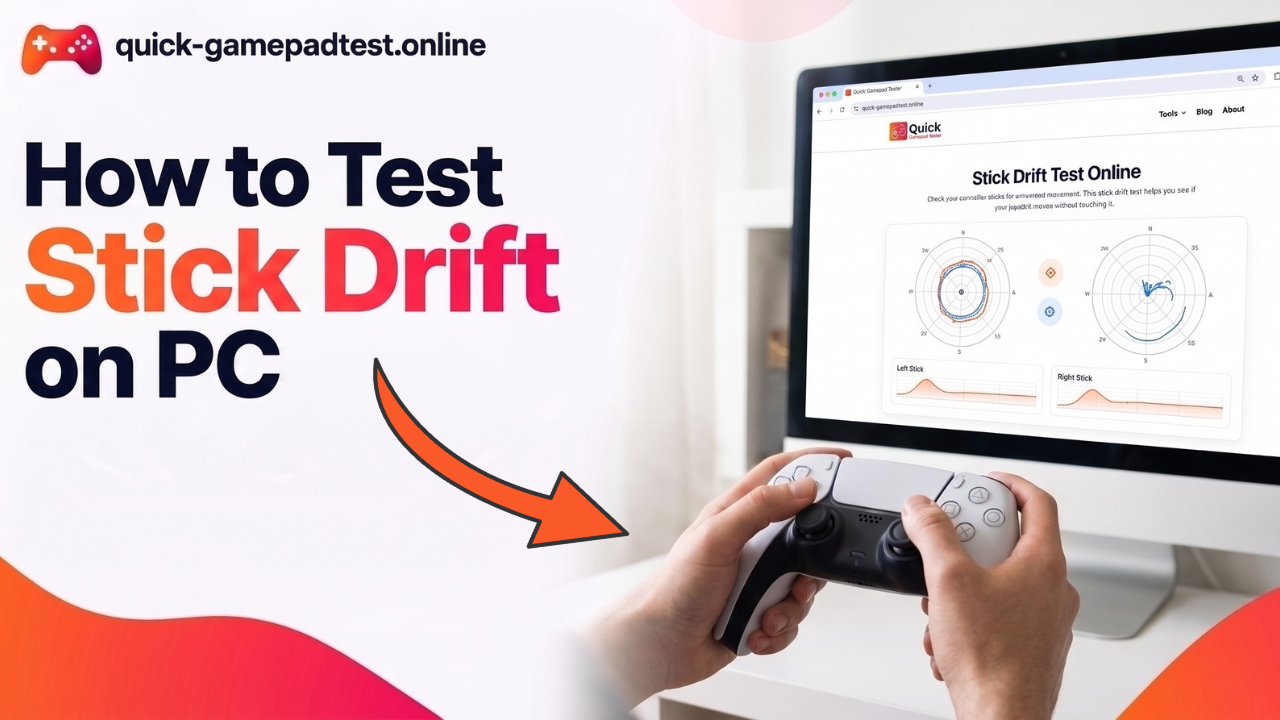
To test for drift, release the analog stick completely and watch the tester for a few seconds. If the axis keeps shifting while the stick is physically centered, repeat the test to confirm the result.
Test each stick separately. One stick can work normally while the other has a drift problem.
A browser-based PC Gamepad Tester can make this problem easier to see because you can watch the raw or interpreted stick movement without relying on a particular game.
How to Test Gamepad Triggers
Next, check both triggers.
Pull the first trigger slowly from its resting position to a full press. Watch the value shown by the tester as you move it.
An analog trigger should normally show changing input as you move from a light press to a full press.
Repeat the same test with the second trigger. If one trigger does not respond or its value does not change smoothly, it may need further checking.
The exact values and behavior can vary depending on the controller and how its inputs are exposed to the browser.
How to Test Gamepad Vibration on Windows
Some controllers and browsers support vibration testing directly from a browser.
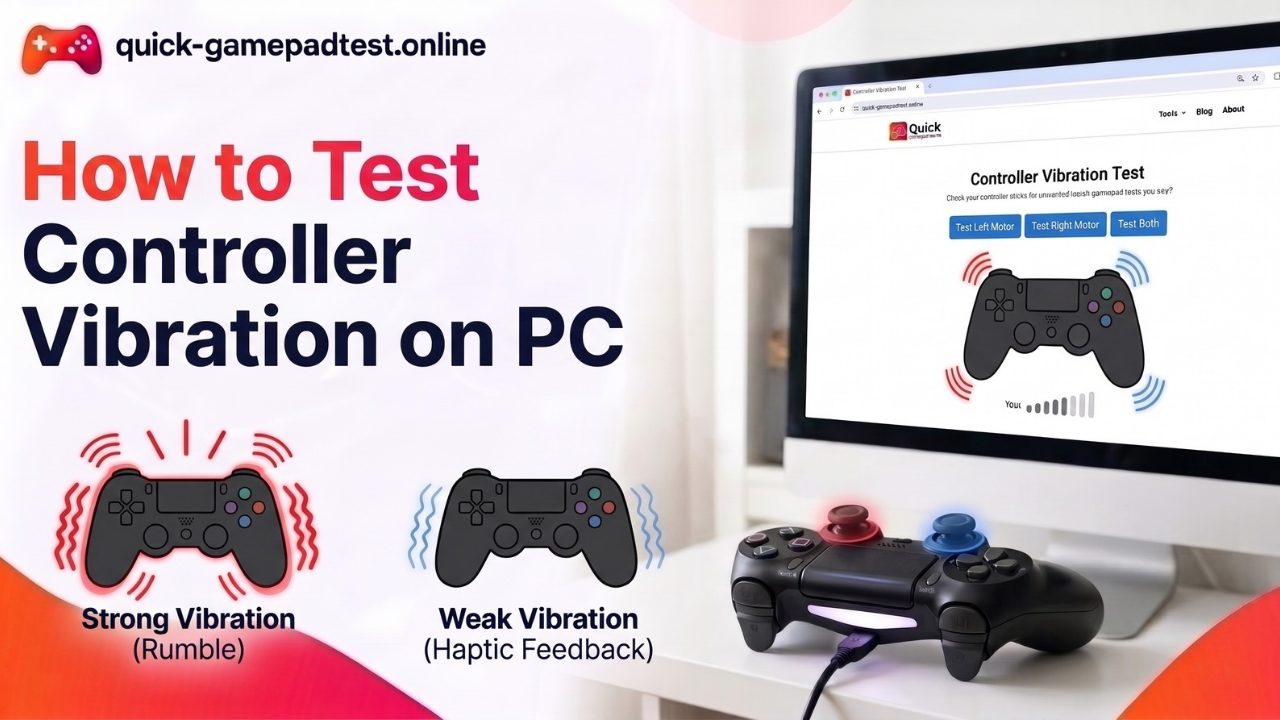
If your Windows gamepad tester offers a vibration option, start the test and check whether the controller responds with rumble or haptic feedback.
Keep in mind that vibration support can depend on the controller, Windows, the browser, and the connection method. Therefore, a failed vibration test does not always mean that the controller hardware is damaged.
How to Use Gamepad Tester on Windows 10
A Gamepad Tester Windows 10 setup follows the same basic process.
Connect your controller through USB or Bluetooth, open the tester in a supported browser, and press a controller button so the browser can detect it.
After detection, check the buttons, D pad, sticks, triggers, and other available inputs.
The important point is that the tester depends on what the browser can read from the connected controller. Different controllers can expose different mappings and features.
If you are searching for a Windows 10 Gamepad Tester, you generally do not need a separate desktop testing program when your browser can access the controller through the Gamepad API.
How to Use Gamepad Tester on Windows 11
The basic process for a Windows 11 gamepad tester setup is also straightforward.
Connect your controller, open the tester in your browser, and press a button or move a stick. When the controller appears, test each input individually.
If Windows 11 recognizes the controller but the browser does not show it, try reconnecting the device and testing another supported browser.
You can also close games or other applications that may be using the controller before testing again. This can help when a controller is detected by the computer but does not immediately appear in the browser.
Can You Use a Gamepad Tester on Windows 7?
You may also see searches for Gamepad Tester Windows 7 because some users still have older Windows systems.
The important part is browser and controller support rather than the keyword itself. A browser-based tester needs the browser to show the connected gamepad to the webpage.
If the controller is not detected on an older Windows computer, check the USB or Bluetooth connection first. Then check whether the browser supports the required gamepad features.
For the most reliable testing experience, use a current supported desktop browser and a properly recognized controller.
What About Gamepad Tester Para PC?
The phrase Gamepad Tester para PC is another search variation used by people looking for a controller testing tool for a computer.
The process is the same. Connect the controller, open the tester, press a button to wake or detect the device, and then check the individual inputs.
The important thing is not the wording of the search. Whether you search for a gamepad tester for pc, gamepad tester para pc, or pc gamepad tester, the goal is to check whether the controller inputs are being received correctly.
What If Gamepad Tester Does Not Detect Your Controller?
If your controller does not appear, start with the connection.
For USB, disconnect the controller and reconnect it. You can also try another USB port or another cable if available.
For Bluetooth, check that the controller is properly paired and connected to the PC. If possible, test the controller through USB to see whether the problem is related to the wireless connection.
Next, press a controller button while the tester page is active. Some browsers may expose the gamepad after user interaction.
If it still does not appear, try another supported browser. Also close games or applications that may be using the controller and then reopen the tester.
How to Test PS4, PS5, and Xbox Controllers on PC
A Windows PC can also be used to test common console controllers when the browser recognizes them as gamepads.
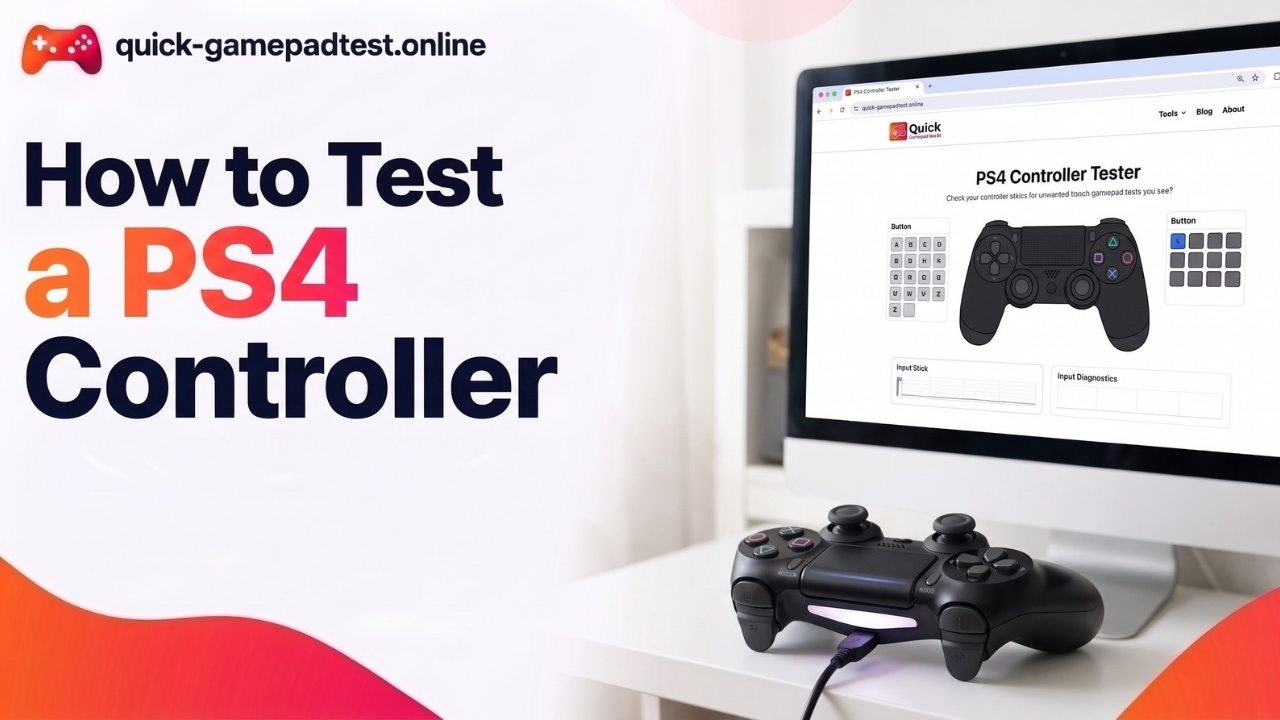
For a PS4 controller, connect the controller through USB or a supported Bluetooth connection and check the buttons, D pad, sticks, and triggers.
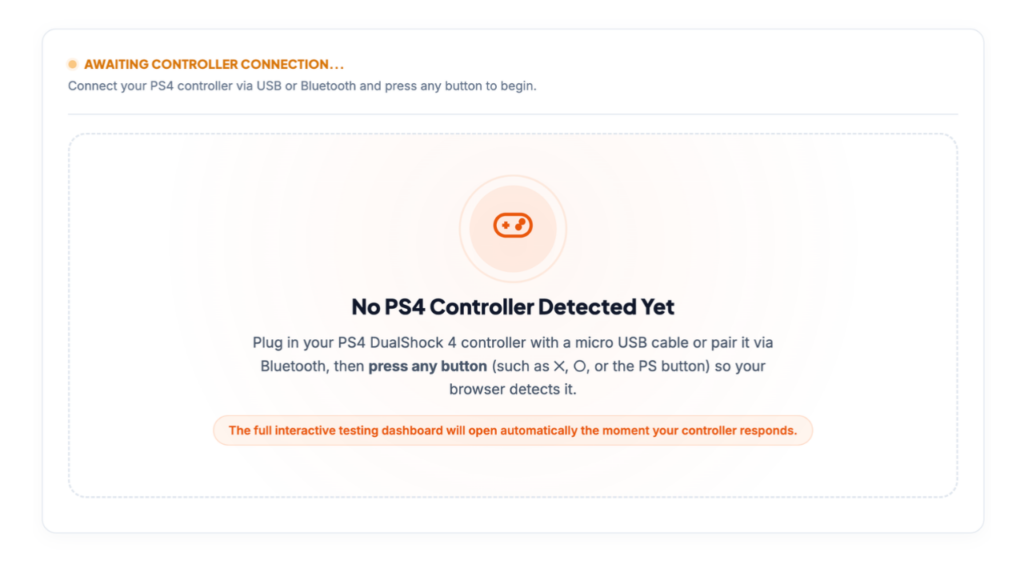
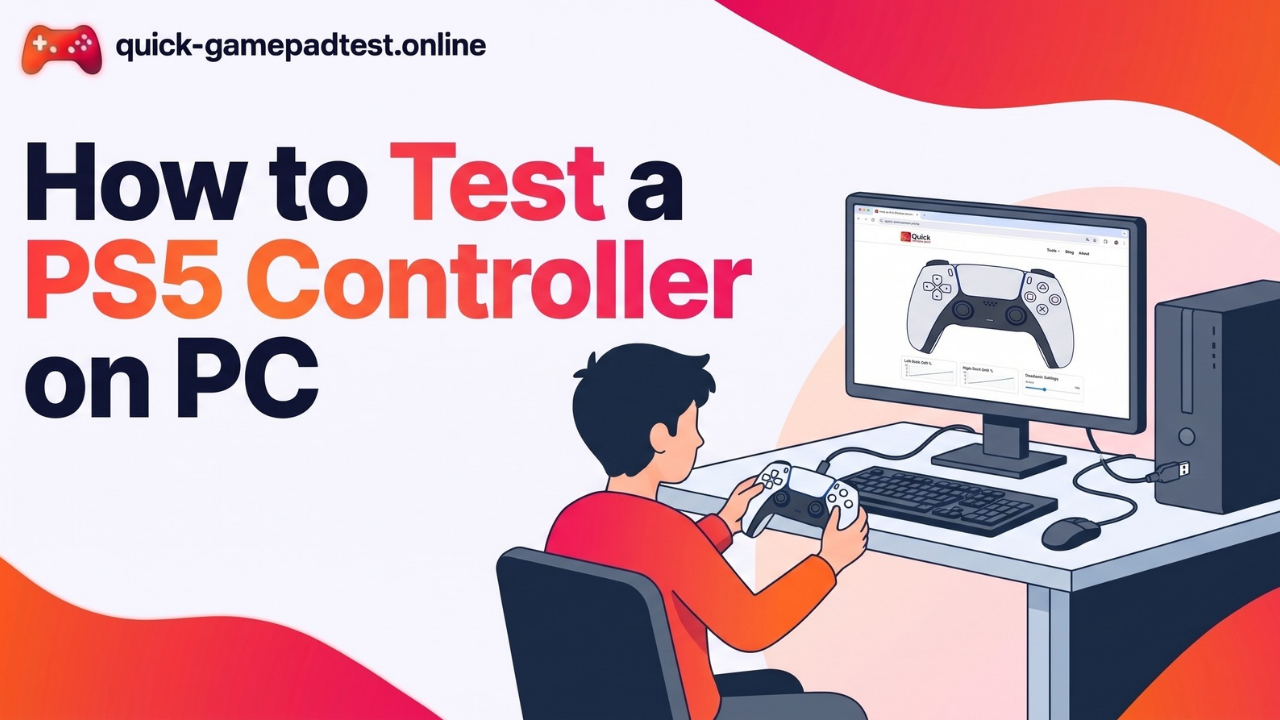
For a PS5 DualSense controller, you can perform the same basic input tests. Advanced controller features may not always be exposed through the standard browser Gamepad API.
Xbox controllers can also be checked on a compatible PC. Test the face buttons, D pad, bumpers, triggers, and analog sticks one at a time.
Also Read: How to Test an Xbox Controller on PC / Windows
If you want more information about the basic testing process, you can also read our complete guide to using Gamepad Tester. It explains the basic controller testing process in more detail.
How to Understand Your Gamepad Test Results
You do not need to be an expert to understand the basic results.
If a button responds when you press it, the browser is receiving that input.
If a trigger value changes gradually as you press it, the trigger is reporting its movement.
If an analog stick moves smoothly and returns close to the center after you release it, that is generally the behavior you want to see.
If a stick keeps reporting movement while it is released, repeat the test and check for possible drift or calibration issues.
If a button stays active after you release it, reconnect the controller and test it again.
These simple checks can help you decide whether you should investigate the controller further before replacing it.
Why Should You Use a Gamepad Tester for PC?
A Quick Gamepad Tester for PC / Windows is useful when you want to check a controller without opening a game.
It can help you find a button that does not respond, a trigger that behaves incorrectly, unusual analog stick movement, possible stick drift, or unsupported vibration.
It is also useful before buying a used controller. Instead of trusting the seller’s description, you can connect the controller to a PC and test its available inputs yourself.
The same approach can help when a controller works in one game but behaves differently somewhere else. Testing it outside the game can help you understand whether the issue is with the controller or the game’s input system.
Frequently Asked Questions
How do I test a gamepad on Windows PC?
Connect the controller through USB or Bluetooth, open a browser-based tester, press a button, and check the buttons, sticks, triggers, and vibration.
What is the best Gamepad Tester for Windows?
A browser-based tester is a simple option because it can show controller inputs without requiring separate testing software.
Can I use a Gamepad Tester on Windows 10 and Windows 11?
Yes, when the controller and browser are supported. The basic process is to connect the controller, open the tester, and check the detected inputs.
Can I test a PS4 or PS5 controller on PC?
Yes. Connect the compatible controller to the PC through USB or supported Bluetooth and check its buttons, sticks, and triggers.
How do I check if my controller has stick drift?
Release the analog stick and watch its position or axis readings. If it keeps reporting movement while untouched, repeat the test to check for possible stick drift.
Why is my Windows Gamepad Tester not detecting my controller?
Check the USB or Bluetooth connection, make sure the controller is recognized by Windows, press a button while the tester page is active, and try another supported browser if necessary.