
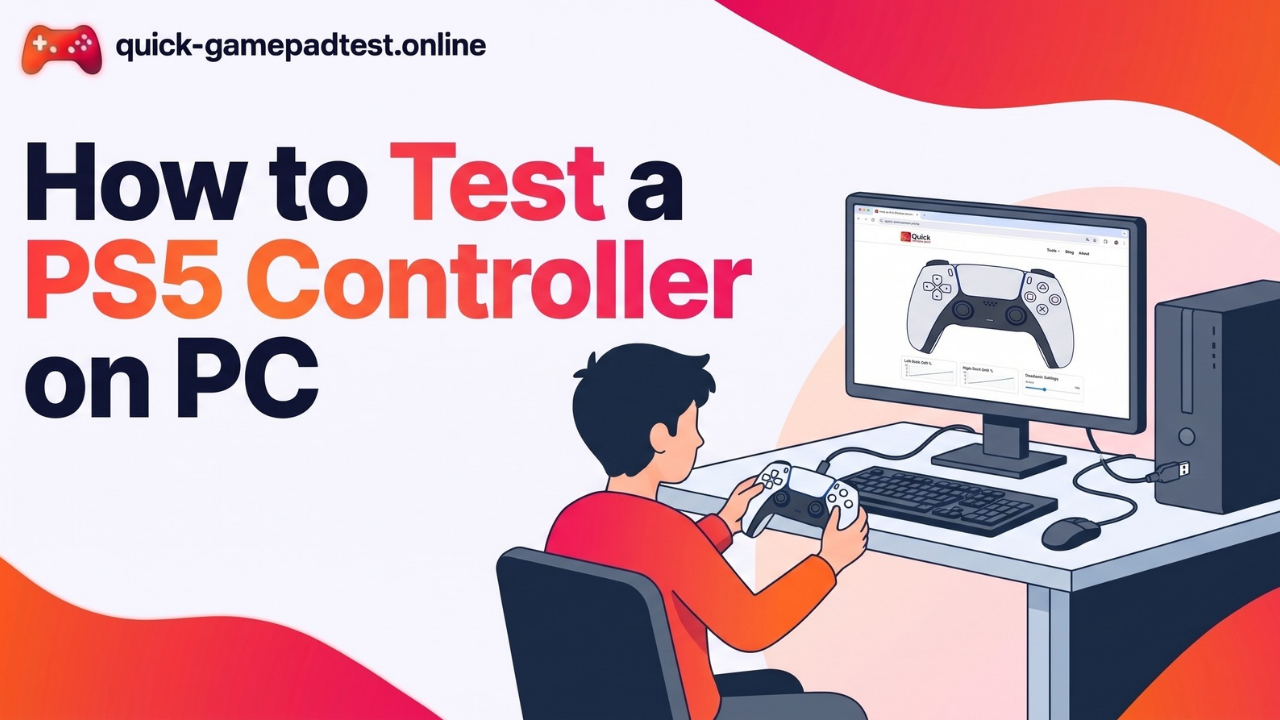
To test a PS5 controller on PC, connect the DualSense with a USB cable or Bluetooth. Then open the Windows Game Controllers panel by typing joy.cpl in the Run box, or open Steam’s controller settings. Press every button, pull both triggers and move both sticks. Each input should light up on-screen.
Tested on Windows 10/11 · October 30, 2026
Can You Use a PS5 Controller on PC Natively?
Yes. Windows reads a DualSense controller as a normal gamepad, so basic testing needs no extra software. Sony lists Windows PCs as supported, though support can differ by game.
What Windows Detects Natively vs. What Needs Steam or DS4Windows
Windows picks up buttons, sticks and triggers on its own. Adaptive triggers and haptic feedback need Steam Input or a supported game. DS4Windows helps older games that only know Xbox controllers.
DualSense vs. DualSense Edge Compatibility on PC
Both pads connect over USB or Bluetooth, and Sony lists both as supported. The Edge adds back buttons and trigger stops, so it needs a few extra checks.
Custom DualSense and Third-Party Controllers: What to Expect
A custom DualSense with a new shell works like a standard one. Certain controllers from other brands skip advanced features such as haptics, so each input needs a test.
Xbox Controller on PC vs. PS5 Controller on PC (XInput vs. DirectInput)
Xbox controllers use XInput, which most PC games expect. The DualSense uses DirectInput. That gap explains odd button prompts until Steam Input or DS4Windows translates the signals.
Step-by-Step: Connect Your DualSense to PC
Connect via USB Cable (Fastest Way to Test)
- Plug a USB-C data cable into the controller and the PC.
- Wait a few seconds while Windows sets it up.
- Press the PS button once the controller is connected.
Charge-only cables will not work.
Connect via Bluetooth (Wireless Pairing)
Press and hold Create and PS until the light bar flashes. Open Bluetooth settings in Windows, choose Add a device and pick Wireless Controller.
USB vs. Bluetooth: Which Is Better for Testing?
USB is the best way to test. It skips pairing trouble and usually gives the lowest latency. Bluetooth suits relaxed play afterward.
3 Ways to Test Your PS5 Controller on PC
Each method shows something different.
| Method | What it tests | What it can’t test |
| Windows Game Controllers | Buttons, sticks, triggers | Adaptive triggers, haptics |
| Steam’s controller settings | Buttons, sticks, calibration | Effects a game must support |
| Online gamepad tester | Live stick values, drift, vibration | Gyro, battery, adaptive triggers |
Method 1: Test PS5 in Windows Game Controllers Settings
Press the Windows key and R, type joy.cpl and hit Enter. Select Wireless Controller and click Properties. Buttons and sticks show real-time movement. Players who want a bigger view can learn how to use a gamepad tester on Windows PC.
Method 2: Test PS5 Controller in Steam
Open Steam, go to Settings and then Controller. Pick the DualSense and choose Begin Test. Using Steam also brings calibration if a stick feels off.
Method 3: Use an Online Gamepad Tester
A browser tool needs no download. The online PS5 controller test shows live stick values and drift. The full PS5 controller testing guide explains each result. Players can also check which browsers work with the tester.
What to Check: Controller Buttons, Triggers and Sticks
Test Every Controller Button (Face, D-pad, L1/R1, L3/R3, Create, PS, Touchpad)
Press each button once. Every button press should register and release cleanly. Unresponsive buttons or sticky ones point to dirt or wear. Some tools miss the touchpad click, so a second method helps.
Test L2 and R2 Trigger Travel
Pull each trigger slowly. The value should climb through the full range without jumps. A dead spot signals wear.
Quick Stick Drift Check
Let go of both analog sticks and watch the numbers. They should rest near zero. If drift occurs, the readings keep moving. An ALPS sheet rates the joystick parts at 2,000,000 cycles. iFixit estimated that equals about 417 hours of Call of Duty: Warzone gameplay, Video Games Chronicle reported. The full stick drift test on PC has more.
Can You Test Adaptive Triggers and Haptic Feedback on PC?
Why a Basic Test Can’t Show the Adaptive Trigger
Basic tests read plain numbers such as trigger position. Resistance and haptic effects come from the game or driver. Windows panels and browsers cannot show them.
How to Check Haptic Feedback in a Supported Game
Play a game with full DualSense support for a few minutes. Watch for in-game haptic effects. If nothing happens, toggle Steam Input for that game.
DualSense Edge Extras on PC (Back Buttons, Trigger Stops)
Sony says a PS5 console is needed to edit Edge profiles and button assignments. Set those up first. Trigger stops shorten the pull, so readings may stop early.
Best DualSense Settings on PC for Gamers
Customize Your Controller Settings in Steam Input
Steam Input lets players customize controller layout, deadzone and calibration for each game. Small tweaks can make aim steadier.
Using DS4Windows for Non-Steam Games
DS4Windows is a free tool that makes the DualSense look like an Xbox controller. It also helps with remapping. Run it with Steam Input off.
Wireless vs. Wired Settings That Affect Input Lag
A USB cable gives the lowest latency. Bluetooth adds a small delay. Fast-paced shooters make that gap easier to notice.
Troubleshooting: Fix Common PS5 Controller Issues on PC
These steps help diagnose problems fast.
Controller Not Detected via USB Cable
Swap the cable first because charge-only ones fail. Then try another port. The fixes when your controller is not detected cover more.
Bluetooth Won’t Pair or Keeps Disconnecting
Remove the controller from Windows Bluetooth devices and pair it again. Stay close to the PC and update the Bluetooth driver.
Wrong Button Prompts or Double Input (Steam Input vs. DS4Windows Conflict)
Two tools are grabbing one controller. Close DS4Windows or turn off Steam Input for that game.
Controller Issues That Point to Hardware Failure
If drift or sticky buttons survive cleaning and a reset, the part is likely worn. iFixit said these sticks “could easily exceed their operating life in just over 400 hours of game time,” TechSpot reported. Check the warranty before paying for repairs.
FAQ
Does a PS5 controller work on PC without any software?
Yes. Windows detects a DualSense over USB or Bluetooth and treats it as a basic gamepad. Buttons, sticks and triggers work in the Game Controllers panel. Software like Steam Input or DS4Windows only adds extras such as remapping, adaptive triggers and support for games that expect an Xbox controller.
Can I test a PS5 controller on PC without a PlayStation 5?
Yes. The controller never needs a console for testing. Players can plug it into the PC and use the Windows panel, Steam or a browser tool. The console only matters when someone wants to edit DualSense Edge profiles.
Why does Windows show my DualSense as “Wireless Controller”?
That is the name the DualSense reports to the system. Windows simply shows it, so the label does not signal a problem. The same name appears in Bluetooth settings during pairing. Players can ignore it and test as normal.
Can I use adaptive triggers and haptic feedback on PC?
Yes, in supported games. The game must support the DualSense features, and the connection often runs through Steam Input. Basic testers and Windows panels cannot show these effects. Sony notes that support varies by game, so players should check each game’s controller details.
Is there input lag using a PS5 controller wirelessly on PC?
A small amount can appear. Bluetooth adds a slight delay compared with a USB cable. Casual play rarely shows it. Players in fast shooters often switch to the cable for the lowest lag.
Do I need DS4Windows to use a PS5 controller on PC?
No. Steam Input covers Steam games and Windows handles basic input. DS4Windows only helps with non-Steam games that expect an Xbox controller. Running it next to Steam Input can cause double input, so players should pick one tool.
Why does my PS5 controller keep disconnecting from my PC?
A weak signal, an old driver or a power saving setting often causes it. Players can move closer, remove and re-pair the controller, or update the Bluetooth driver. A USB cable fixes the drops right away and shows whether the controller itself is at fault.
Can I use a DualSense Edge on PC?
Yes. Sony lists the DualSense Edge as supported over USB and Bluetooth. It tests the same way as a standard DualSense, with extra back buttons and trigger stops to check. Players should edit profiles on a PS5 console first.
Quick Test Checklist
- Windows or Steam lists the controller. Pass if it appears, fail if it is missing.
- Every button lights up once and releases. Fail if any button sticks or skips.
- Both sticks rest near zero. Fail if the numbers keep moving.
- L2 and R2 rise smoothly to full. Fail if either one jumps or stalls.
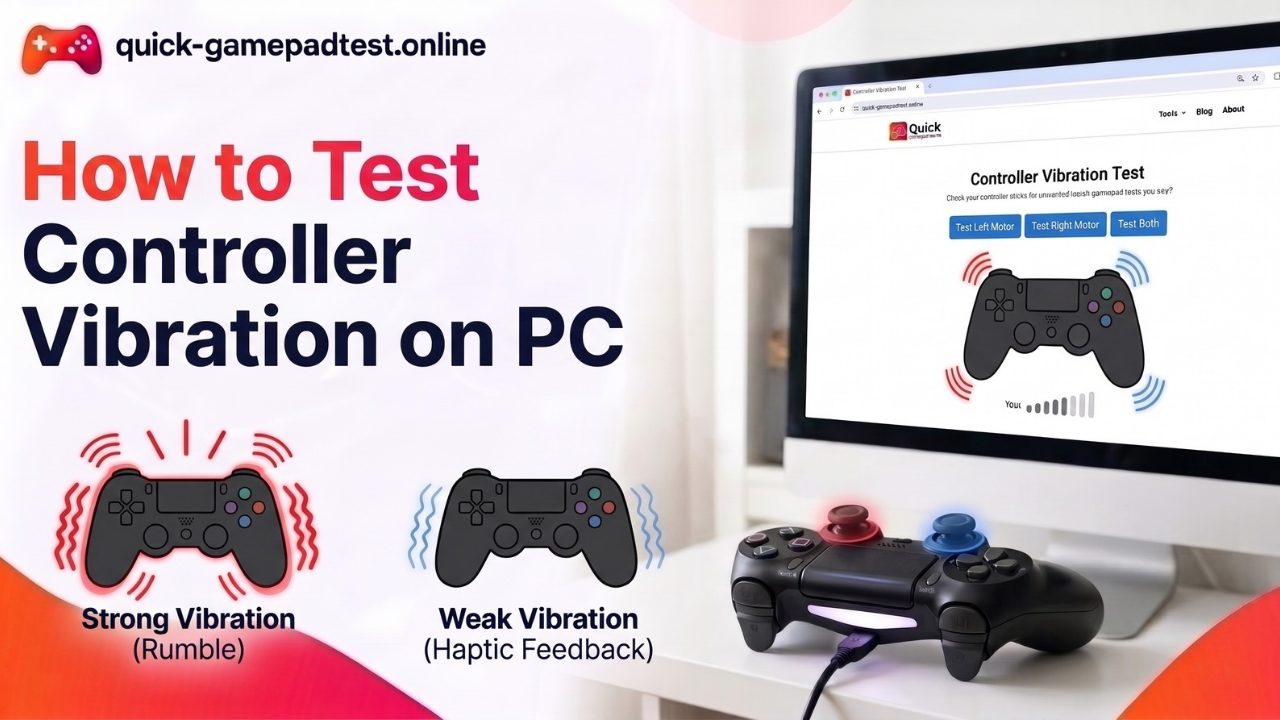
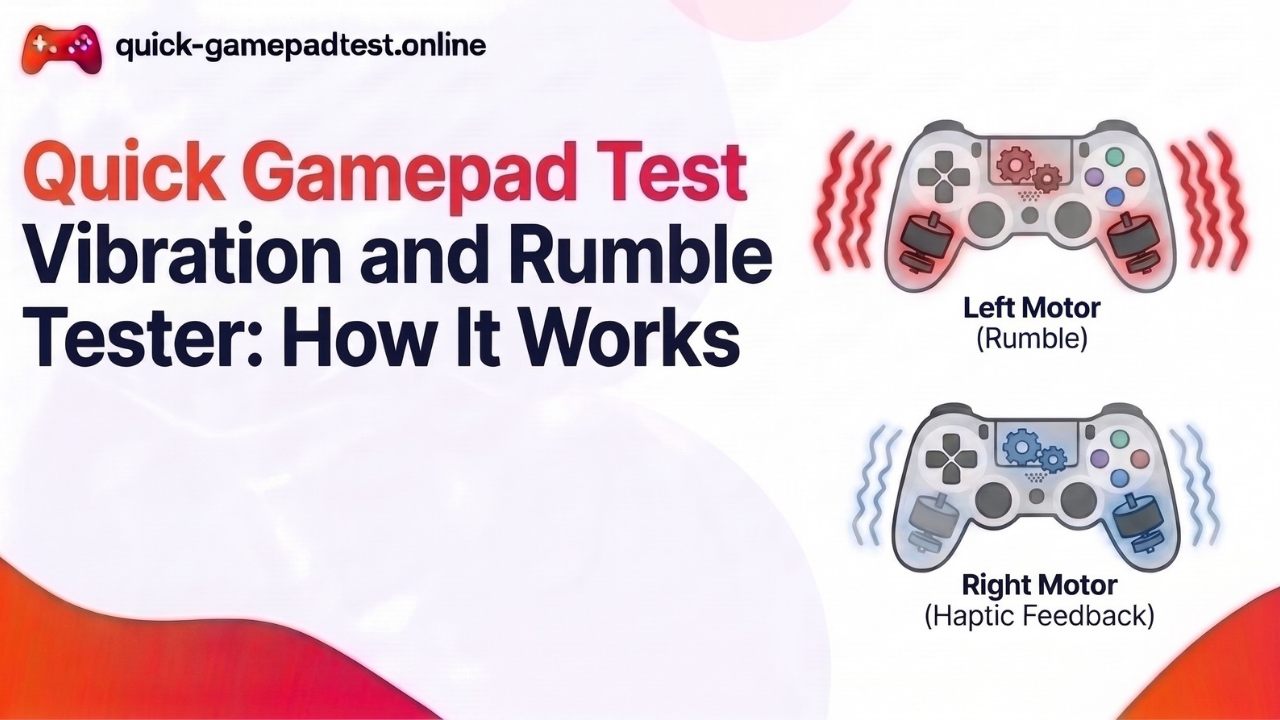
- Vibration runs in a test or game. Fail if one side stays silent.
- The connection holds for five minutes. Fail if it drops.
When every line passes, the controller is working properly. Players who want a closer look can run the free PS5 tester to confirm everything is working.